Style libraries
Style Libraries are a common source of styles for projects. Style Libraries are shared between users in a manner like custom component libraries.
A style library contains the definition of individual style types. When you apply a style to an object in a document, the attributes of the style are retrieved from the style library.
By default, all styles in the style library associated with the active drafting standard are available for formatting objects in documents. Usually the style library is managed by the CAD Administrator, so that the integrity of the library is maintained across the design project.
You can use a single global library so that all designers use the same styles or you can specify a library for each project. Project style libraries are often a variation of the default library.
A style library can be specified in the project options. For more information, see the Project Editor reference.
How can I share styles across documents?
Styles are shared (or copied) among documents in two different ways:
- The styles can be exported using the Style and Standard Editor Import/Export functionality.
Tip: To export a style, open a document, select a style (or styles) in the Style and Standard Editor dialog box, right-click, and select Export from the pop-up context menu. To import a style, click Import at the bottom of the Style and Standard Editor dialog box, and select the style to import.
- The style can be saved to a Style Library, where it can be reused by other documents.
What advantages do style libraries offer?
Style Libraries create a central location of styles for simple administration.
They offer users a central source for styles. Put a style library on a network so the whole project team can share the same formatting standards, materials, and so on. When changes are made to a style that all users must consume (for example, changing the precision of a dimension style), all that is needed is to save the changes to the Style Library. Changes to templates (potentially multiple templates) are not necessarily needed. Once saved, document styles are updated directly from the library.
Style Libraries are a common style source for all documents.
With Style Libraries, different document types read styles from the same source. This feature benefits parts, sheet metal parts, assemblies, and presentation files, which all use the same color and lighting styles from the library. It also means that materials can be shared between parts, sheet metal parts, and weldments.
Style Libraries can aid with large assembly performance.
Without a Style Library, each required style definition must be stored in a document. For parts, it can mean 20+ material and 30+ color styles in every file. It consumes memory though only one color and one material is used at a time. Multiplied by the hundreds of unique parts in a large assembly, it adds up quickly. By moving styles into the external style library, only in-use styles are cached in the document's memory space, reducing the memory footprint of each document.
Style Libraries adapt to your unique needs.
Organizations can have a single, global library used by all designers, or each project can have its own specific library. This flexibility, along with a well-defined set of document templates, makes handling and encapsulation of project data manageable.
What is stored in a style library?
Autodesk Inventor provides a style library that contains a set of common materials, colors, and lighting for parts and assemblies, as well as common drafting standards such as ANSI, ISO, and DIN for drawings. Sheet metal styles include gage or sheet thickness as well as definitions for bends, corners, alternative flat pattern representations and unfolding preferences. Style libraries are a common source of styles for all documents in a design project. Each style library is a collection of .xml files, one for each style type. For example, there is a file for balloons, dimensions, layers, parts list, and all other style types.
The location of a Style Library is limited by one factor. Only one Style Library can exist in a directory. Style Libraries are stored on any local or network location.
When to use style libraries
A style library is a good way to manage styles so that they can be shared across documents in a design project. For example, material styles can be made available to designers so that all parts and weldments have access to the same definitions. Commonly used sheet metal materials, gauge or sheet thicknesses, and manufacturing preferences for corners and bends can be shared and easily accessed. In drawings, using styles assures uniform annotations, including such details as arrowheads, dimensions, leaders, center marks, and so on.
A good time to start using style libraries is when you start a new project, are new to Autodesk Inventor, or are an individual designer or work in a small group. You can use the default style library associated with the drafting standard.
To get started, you can use the default styles that are associated with each drafting standard. That is, ANSI comes with its own set of styles, as does DIN, JIS and other international standards. As your company standardizes on how to format objects, styles can be added or edited, and the changed styles saved to the style library. New documents will automatically have the styles available for formatting.
You might want to transition to using a style library later if you have active legacy projects, you work in a large workgroup, require PDM control of projects, and have need for one or more custom style libraries.
Use a style library when:
- You work with large assemblies and need a good way to share style information among multiple documents.
- You work in a workgroup that needs a common source of styles.
- You use document formatting changes from a CAD Administrator.
- Need to easily deploy changes to styles.
- You share formatting standards without providing internally controlled templates or documents.
Consider using a Style Library out of the box if you:
- Are starting a new project or are a new user.
- Work as an individual or in a small workgroup.
- Can probably use the Default Style Library that shipped with Autodesk Inventor.
Working without a style library
The project file (.ipj) includes a Use Style Library option that turns a style library on or off. When you turn a style library off, styles are available only in a document template. (It is the default for all pre-Autodesk Inventor 9 projects). If you change styles in the templates, all future documents will access the changes, but previously created documents will not.
Not using a Style Library has the following disadvantages:
- Updating documents to consume style changes from a CAD Administrator and sharing styles between documents is more difficult. Styles must be manually exported, and then imported into every document requiring the change, including all template files for a project.
- There are no capacity gains for large assemblies because all required style definitions are stored in every document.
If you later decide to work with the style library on, update the styles for previously created documents.
To transfer styles from one document to another, import or export styles.
Working with a style library
There are two ways to specify the style library to use. You can:
- Set up a style library that is specific to a project. In the Project Editor, turn on the style library on, and then set the project's Style Library folder option. Browse to a directory that contains the desired style library. Its styles are available to all designers who use the project.
- Specify the default style library on the File tab of the Application Options dialog box. If the Style Library folder option of the project is set to Default, this default setting is used.
The default Style Library is located in the Autodesk Inventor Design Data directory. This directory is defined by the Design Data path and is found and changed by selecting Tools tab  Options panel Application Options on the ribbon. The option is found on the File tab.
Note: If the Design Data directory location changes (from the Application Options setting), all projects set to [Default] for their Style Library change to use the Style Library located in the new Design Data directory. This change does not affect objects inside the documents unless they find a matching style in the new library and updated manually to match.
When a project is created, or its Use Style Library option is changed from No to either Yes or Read Only, the project uses the default Style Library. It is indicated by [Default] as the setting for the Style Library folder option in the project file. The default Style Library is ideal for users who want to use a single style library for all of their projects.
The location of the Templates folder is by default:
Microsoft Windows XP: Program Files\Autodesk\Inventor [version]\Templates.
Microsoft Vista: Users\Public\Documents\Autodesk\Inventor [version]\Templates.
It may be appropriate to have a Style Library that is specific to each project. For example, a contractor may need a different set of styles to match each customer's formatting requirements for documentation.
A project is set to use a specific style library by setting the Style Library folder option to a specific path. If a Style Library exists in the specified directory, the project uses that Style Library. If the directory is empty, Autodesk Inventor creates an empty Style Library for the project.
Setting style library use for projects
Style Library use is determined by the active project file. There are two elements that define the setup:
- Will the project use a Style Library? This is determined by the project's Use Style Library setting. This also influences how document templates are used in a project.
- Which Style Library is used? Each project has the option to use any Style Library a user creates, but projects use only one Style Library at a time. The project Style Library Folder Option determines the location of the Style Library.
Use Style Library = Yes
If Use Style Library is set to Yes, the project uses the Style Library defined in the Style Library folder options. All automatic management of styles is performed on all files opened under the project. With this setting, you have full read/write access to the styles in the library, that means you can edit and change the styles in the library by performing a Save to Style Library from an Autodesk Inventor document. This setting gives users all the benefits of using a Style Library, including full sharing capability, streamlined updates of styles, and any potential capacity gain for large assemblies.
Note: A Style Library is a group of predefined XML files. However, a Style Library is treated as a single entity by Autodesk Inventor. When a Save to Style Library is performed, the entire library is saved from the Autodesk Inventor internal memory back to disk. Use Style Library = Yes is recommended for CAD Administrators or by users who do not share Style Libraries with other users.
Use Style Library = Read Only
Setting a project's Use Style Library option to Read Only behaves like Use Style Library = Yes with one difference. You cannot change the Style Library using any of the Save to Style Library functions inside Autodesk Inventor.
Note: If one of the XML files that make up a Style Library is set to Read Only through file properties, Autodesk Inventor treats this if the Use Style Library option was set to Read Only, even if Use Style Library = Yes. In this case, the entire library is treated as read-only even if some of the XML files are read/write.
Use Style Library = No
Setting a project's Use Style Library option to No prevents the project from using a Style Library. Required style definitions must then be loaded into the document in one of the following ways:
- Created in the document using the Style and Standard Editor.
- Loaded into the document using the Style and Standard Editor Import function.
- Be in the template document when the document is created.
Switching Between Using and Not Using a Style Library
Persistent use of a Style Library is recommended throughout the life of a project. As documents do not store unused styles that are in the project's Style Library, switching a project to not use a Style Library may leave your documents without the styles you expect to be available.
How do the templates and styles interact?
Depending on the Use Style Library setting, Autodesk Inventor templates take on a slightly different role:
If you set Use Style Library = No in the project, templates interact with styles in the same way as pre-Autodesk Inventor 9 templates. Styles are stored in the templates and are copied to new documents when created. If a style in a template is changed, that change does not propagate to existing documents based on that template. Required document styles must be added to the template files.
If you set Use Style Library = Yes or Read Only, templates are not the primary source of styles for new documents. They are the source of the default styles the document uses. When a new document is created, any styles in the template are copied from the Style Library as part of the document creation process.
When using a Style Library, styles that are in the template are refreshed to match the style library when a new document is created. If a style in a template does not exist in the library, it is added to the new document. If you want to have a specific set of styles you use all the time and you do not want all users to share a Style Library, we recommend you to use templates this way. For example, your company may have a single Style Library that all users share, containing all company-approved materials, drafting standards, and so on. However, a specific project may require a specific set of layers that are not part of the company standard. Instead of creating a separate Style Library for the project, the layers are added to the drawing template for the project.
Tip: When setting up templates for a project using a style library, we recommended that you purge all styles that are not required in the project.
Save styles to a style library
You can create or edit a style, and then save the changed version to the style library. If the style has the same name as a style that exists in the style library, it replaces the library version.
Access to a style library may be controlled by the CAD administrator. It is usually a good practice for the CAD administrator to maintain a master copy of a style library and copy it if modifications are needed. Using this practice, you can always retrieve the default styles from the master library.
- Create or open a document with the styles you want to copy to the style library.
- On the ribbon, click Manage tab Styles and Standards panel Save .
- In the dialog box, all styles in the document are listed. Click column headers to sort contents.
- In the Changed column, all styles that do not match the library are labeled Not in Library.
- In the Save to Library column, styles that do not match the library are automatically labeled Yes. Click to change to No, if desired.
- To mark all styles at once, click Yes to All or No to All.
- Click OK to save styles marked Yes, or Cancel to close the dialog box without saving styles.
Note: When you save a style to a style library, substyles are automatically saved. You are prompted to save referenced substyles that are different from the library. For example, a dimension style uses a text style as a substyle. If you change the dimension style and text style, saving the dimension style to the style library prompts you to also save the text style to the library.
Manage style libraries
Style Library Manager is a stand-alone tool used for the administration of style libraries. This tool works directly with the style library XML files on disk, and is not used in the management of styles inside Autodesk Inventor documents. It is accessed from the Microsoft Windows Start menu, and is found in the Tools submenu for Autodesk Inventor.
Use Style Library Manager to:
- Create new style libraries
- Manage styles in style libraries
- Manage styles between multiple style libraries
Create style libraries
Autodesk Inventor installs with a default style library designed to leverage of all new capabilities of styles.
You can create your own style libraries in two different ways: Copy an existing style library or create an empty style library. The target directory for the new library cannot include other style library.
After you create a style library, use Style Library Manager or Style and Standard Editor to add or remove particular styles.
Rename and delete styles inside of a library
Use Style Library Manager to rename styles inside of a library. Renaming a style in the library does not rename the same style in any other library or document. Once a style is renamed, all document copies of the style loose their name match and are considered locally cached style.
The only way to delete a style from a library is through the Style Library Manager.
Note: Rename and Delete commands are accessed from the right-click menu when selecting one or more styles.
Tip: There is no Undo in the Style Library Manager. Renaming, copying, or deleting of styles cannot be undone. We recommend you create a backup copy of your library before you make changes.
Copy styles between libraries
Styles are copied between libraries using the Style Library Manager. To copy a style from one library to another, load the source library into Style Library Manager and click the Copy Selected Styles command between the Style Library 1 and Style Library 2 panes. See the Style Library Manager Help for more details.
Manage Style Library Contents
A style library is a group of named XML files in a directory. There is one XML file per style type (for example: color.xml, text.xml). Since the names of the XML files must be the same for each style library, only one library can exist in a directory.
To be considered a valid style library, all predefined XML files must be present in the directory.
The best way to share a subset of styles from a library (for example, a single standard or all materials form a specific library) is to use the Import/Export styles function in the Style and Standard Editor, or create an empty style library and copy the desired styles using the Style Library Manager.
Note: An exported style file (*.styxml) cannot be used as part of a style library.
Incomplete Style Libraries
Though a style library is made up of several separate XML files, Autodesk Inventor and the Style Library Manager treat the library as a single entity. If some of the predefined XML files required for a style library are missing from a directory, Autodesk Inventor displays an error message indicating files are missing and cannot be loaded.
Restoring the Autodesk Inventor Default Style Library
A utility for restoring the default Design Data directory files is located on the Autodesk Inventor Install CD in the Support directory. This utility replaces the original default style library that ships with Autodesk Inventor, as well as the Thread.xls and Clearance.xls spreadsheets.
Prevent Style Library Changes
In a multi-user environment, CAD administrators may want to prevent users from changing a style library. Set the library to Read-only. Two methods are available to make a style library read-only:
- Set the project Use Style Library option to Read Only.
- Use a Microsoft Windows file property setting. In Microsoft Windows Explorer, select all the XML files that make up the library or the library directory folder itself, right-click, select Properties, and set to Read Only.
In Autodesk Inventor, both methods are treated identically when accessing style libraries. If a single XML file is read-only, the entire library is treated as read-only.
An administrator can have two versions of a project file. One is for users (Use Style Library = Read Only), which prevents changes, and one is for administrators (Use Style Library = Yes), to actively edit the library without dealing with the individual Windows file properties of each XML file. For many workgroup setups, this may be sufficient for management of style libraries.
Note: The project file option has the disadvantage that any interaction done outside Autodesk Inventor treats the style library as read/write. This includes the Style Library Manager, which works with library files outside the context of an Autodesk Inventor project. The Style Library Manager only references project files as a shortcut to the XML files.
Style Libraries and Autodesk Vault
Style libraries are not directly supported by Autodesk Vault. Style libraries are manually vaulted and managed using the Vault Explorer.
Note:
- Get, Check in, and Check Out must be done through the Vault Explorer.
- Vaulted Style Library XML files are set to read-only through the file properties, just as any standard Autodesk Inventor file or any other 3rd party file that is vaulted manually.
- If editing the style library is required, all XML files must be checked out.
Manage multiple style libraries
To simplify management of multiple style libraries, consider the following:
- Keep all working style libraries as read-only to prevent accidental changes.
- Use a parent/child style library scheme:
- The parent is a library unused by any active project.
- All project style libraries are considered children.
- The administrator makes all changes in the parent version.
- Push changes to a child by copying the styles from the parent version using the Style Library Manager.
- Try to reuse styles if possible.
- Most users utilize the same material, color, and lighting styles, even if they require a different set of drawing-related styles.
- For management of drawing related styles, give the primary standard and its object defaults unique names for each project. Reuse dimensions, text, and layers as much as possible.
Pack and Go
The Autodesk Inventor Pack and Go utility optionally includes a style library. By default, a project's style library is included in the target directory created by Pack and Go. This is true even if the default library is used, because the recipient's default library may differ from the one used by your project(s).
The packed style library is included in the Pack and Go project in a subdirectory called Design Data. The Pack and Go project file has the Use Style Library setting the same as the original project, but its style library folder option is set explicitly to the Pack and Go location of the packed up style library.
Configure style libraries
Style Libraries can be stored on any local or network location, but only one Style Library can exist in a directory.
Select the Style Library configuration that best corresponds with your needs:
Individual User - Global Style Library
For individual users who do not need multiple project-specific styles, a single, global style library may be the best setup. Users have a single Style Library that is in the Design Data directory on their local drive, and all projects have the Style Library folder option set to [Default].

Multiple Users - Global Style Library
For workgroups that require a single style library for all projects, a Style Library should be located on a common server. Each user's Design Data directory points to this server location, and every project has the Style Library folder option set to [Default]
Note: In addition to the Default Style Library, the Thread.xls and Clearance.xls spreadsheets used by the Autodesk Inventor Hole feature command are located in the Design Data directory. If the Design Data directory is changed, be sure to copy the Thread.xls and Clearance.xls spreadsheets files into this new directory.
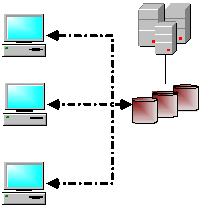
Project-Specific Style Libraries
For users who need a project-specific Style Library, the recommended best practice is to place the library in a subdirectory of the project directory. For workgroups, Style Libraries are best placed on a common server in separate directories. The libraries can be manually administered using Autodesk Vault, and copied onto local computers in a manner like other Autodesk Inventor files.
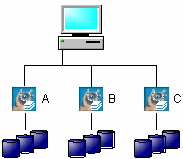
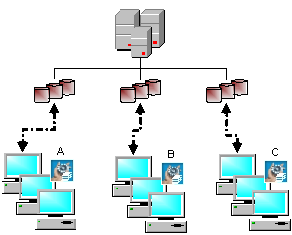
Mixed Scheme Setups
There are no restrictions on how users set up their project/style library schemes. Any project can use any style library.

Create a style library
You can create a style library using one of several methods. In general, new style libraries are created by CAD administrators so that uniform styles are assured throughout a design project.
Individual design projects can use a custom style library, which is specified in the project file. Because it is specified in the project, all designers who use the project use the same set of styles for formatting.
Tip: It is a good idea to keep the original style libraries associated with drafting standards intact. Instead, make a copy of the master library and use it to customize style libraries for individual design projects.
- Click Start menu Programs Autodesk Autodesk Inventor Tools Style Library Manager.
- Click the Create New Style Library command above the Style Library 2 pane.
- In the Creation Method box, click the arrow to select Copy Existing Style Library or Create Empty Style Library.
- In the New Style Library Location box, accept the default location or browse to the folder where you want to store the new library. If the library is accessed by a project, place it in a folder recognized by project locations.
- In the New Style Library Location box, accept the default location or browse to the folder where you want to store the new library. If the library is accessed by a document, place it in a folder recognized by design file locations.
- If copying a style library, in the Source Style Library to Copy box, accept the default library or browse to the library you want to copy. This option is unavailable if you create an empty library.
- Click OK to create the library and close the dialog box.
Exit the Style Library Manager. Use the Style and Standard Editor to customize the styles in the new style library.
Copy, rename, or delete library styles
The Style Library Manager is primarily used by CAD administrators to copy, rename, and delete library styles. The CAD administrator controls the style library contents and assures that designers using styles have the same style definitions, assuring uniform document formatting.
The Style Library Manager uses the Create New Style Library command to create new style libraries. Create New Style Library is also available from the Style Management Wizard.
In general, style libraries are read-only, except to make necessary changes. The Styles Library Manager uses the read-only file property, and disregards the library status in a project file (.ipj), specified by the Use Style Library=Read Only option.
Any changes made to a style library are not available in other documents until the current Autodesk Inventor session closes and a new session is opened.
Tip: It is a good practice to maintain a master copy of a style library, and then copy it before you modify for project-specific style libraries.
You can create new styles or rename styles in a document, but they affect only that document. Take a separate step to save a new or changed style to a style library to replace the library version. Access to the style library may be controlled by the CAD administrator.
Copy styles from one style library to another style library
You can develop style libraries that are specific to a given project. This procedure copies styles you have already defined in one style library to another style library.
- Click Start menu Programs Autodesk Autodesk Inventor Tools Style Library Manager.
- In Styles Library 1, click the down arrow to select or click Browse to locate the style library whose styles you want to copy.
- In the Choose Style Type column, click a style type to list all defined styles in Style Library 1.
- In Style Library 2, click the down arrow to select or click Browse to locate a style library.
If appropriate, click Create New Style Library:
- In Creation Method, select Copy Existing Style Library or Create Empty Style Library.
- Browse to the folder where the library is located.
- If copying a style library, click the arrow or browse to select the Source Library for Copy. The existing styles are listed in the Style Library 2 window.
- Click one or more styles, and then click
 to add them to Style Library 2.
 - Continue to click style types to add to Style Library 1, and then select and add them to Style Library 2.
- Styles in one library might not match the styles in another library. Compare the styles in both libraries.

Click Show All Styles to list all styles in both style libraries.

Click Show Mismatched Styles to show styles whose definitions are different in the two libraries. Mismatched styles are shown in red.

Click Show Unique Styles to show styles that exist in one library but not the other. Unique styles are shown in blue.
- Click the right and left arrows to add or remove styles as desired.
If mismatched substyles are detected, the Manage Styles dialog box opens. Indicate to overwrite the version of the substyle in the destination library or retain the current version.
- Click Close to save the libraries.
Note: Only the selected style is copied from one Style Library to another. Substyles are only copied if they do not exist in the destination library. If a style exists with the same name, the destination version is used.
Rename styles in a style library
A style name can change in the style library, but all documents that reference the old name lose their association to that style.
- Click Start menu Programs Autodesk Autodesk Inventor Tools Style Library Manager.
- Click the arrow or browse to the library whose style you want to rename.
- In the Style Library 1 or 2 window, right-click a style name and select Rename.
A warning asks you to confirm that documents links to the style will be broken. Click Yes to continue or No to cancel renaming. If Yes, enter the new style name.
- Continue renaming as needed, and then click Close to save the changes.
Delete styles from a style library
A style can be deleted from a style library, but all documents that reference the old name lose their association to that style.
- Click Start menu Programs Autodesk Autodesk Inventor Tools Style Library Manager.
- In the Style Library 1 or 2 window, click the arrow or browse to the library whose styles you want to delete.
- Select a style type in the Choose Style Type list. Then right-click a style name in the Style Library 1 or 2 window and select Delete.
A warning asks you to confirm that the style will be permanently deleted from the style library. Click Yes to delete the style or No to cancel delete.
Note: You cannot use Undo to reverse a deletion.
- Continue deleting as needed. When finished, click Exit to close the Style Library Manager dialog box.
Tip: Use Manage tab Styles and Standards panel Purge to remove unused styles from the current document, and optionally, all referenced documents.
Harvest or purge styles in a batch process
The Style Management Wizard is a tool for administrators to assist in batch-style management for Autodesk Inventor files. Batch processes harvest or purge styles for multiple files in one operation. All files must migrate to the most recent version of Autodesk Inventor or they are skipped during batch processing, including assemblies that were migrated but contain components that were not migrated.
To open the Style Management Wizard, click Start menu Programs Autodesk Autodesk Inventor Tools Style Management Wizard.
Harvest styles in a batch process
Specify a group of Autodesk Inventor files (such as parts, assemblies, and drawings) and a target style library. Using the Style Management Wizard, all styles from the selected documents are added to the style library.
This process is useful if you did not make extensive use of templates for the source of styles, but primarily created styles on-the-fly in individual documents.
- Select a project to manage. In the listed projects, double-click to make a selection. The Style Library settings and Autodesk Inventor version number are listed below the window. Click Next.
- Select files to process. Add files using one of these methods:
- Add Specific Files command Click to open the Choose Files to Process dialog box. Browse to the folder that contains the files to process. Select one or more files and then click Open. Selected files are listed by file name, file type, and path.
- Add All Files in Active Command Lists all files accessible in project folders file name, type, and path. Clear the check box to exclude a file from processing.
If you prefer, use an alternate method to add files to the list:
- Drag and drop files from Windows Explorer. Drop them in the list to add them.
- Get all files referenced by a specific file by right-clicking the file in the process list, and then selecting Get Referenced Files. Adds all files that the selected file is dependent on to the list.
- Get all drawings or presentations that use a specific file by right-clicking a file in the process list. Select Drawings and Presentations, and then Get All. Adds to the process list all drawings and presentations in the project search paths that use the specific file.
Tip: Click the column headings of the files list to sort the window contents.
- On the Select Management Options page, select Harvest Styles into Target Style Library.
- Select the target library, the destination of the harvested styles. Choose one:
- Use Source Project Style Library automatically selects the style library specified in the project.
- Create a New Style Library opens the New Style Library dialog box. Specify to copy an existing style library or create an empty library. Browse to the folder where the library will be stored, and if copying, the source style library you are copying.
- Select an Existing Style Library lists the Default Style Library, but you can browse to a different library.
- Click Next.
- If necessary, review the selections you have made, and then click Start to harvest styles to the specified library.
A log file is generated during processing. You can press Pause to halt the processing temporarily or Cancel to stop.
Purge styles in a batch process
Specify a group of Autodesk Inventor files (such as parts, assemblies, and drawings) and remove every unused style in all documents. This technique is a fast way to remove styles from legacy documents that you no longer need after you start using a style library.
Note: Use caution when purging styles. Every unused style is removed permanently from all processed documents. If the styles are not saved in another document or a style library, they are permanently lost. Always back up your data before purging styles.
- Select a project to manage. In the listed projects, double-click to make selection. The Style Library settings and Autodesk Inventor version number are listed below the window. Click Next.
Note: The source project must have a style library.
- Select files to process. Click one:
- Add Specific Files command Click to open the Choose Files to Process dialog box. Browse to the folder that contains the files to process. Select one or more files, and then click Open. Selected files are listed by file name, file type, and path.
- Add All Files in Active Project command Lists all files accessible in project folders file name, type, and path. Clear the check box to exclude a file from processing.
If you prefer, use an alternate method to add files to the list:
- Drag and drop files from Microsoft Windows Explorer. Drop them in the list to add them.
- Get all files referenced by a specific file by right-clicking the file in the process list, and then selecting Get Referenced Files. Adds all files that the selected file is dependent on to the list.
- Get all drawings or presentations that use a specific file by right-clicking a file in the process list. Select Drawings and Presentations, and then Get All. Adds to the process list all drawings and presentations in the project search paths that use the specific file.
Tip: Click the column headings of the files list to sort the window contents.
- On the Select Management Options page, select Purge All Unused Styles from Files.
Be sure that you want to purge all unused styles from all documents. Styles not saved in a style library are permanently lost. Click Next.
- If necessary, review the selections you have made, and then click Start to purge all unused styles from all selected documents.
You can press Pause to halt temporarily the processing or Cancel to stop.
Save styles to style library
Saves selected styles in the document to the style library. The current style library version is replaced with the new version.
In other documents that use the style, you must manually update to apply the new version of the style in the library.
| Access: | Ribbon: Manage tab Styles and Standards panel Save  |
| Click a column heading to sort contents. All columns resort to correspond with the new order. | |
| Document Name | Shows file name in which the style is used. |
| Style Name | Lists styles in the current document. |
| Type | Identifies the style type. |
| Changes | Indicates if a style was changed in the document or library. If the style does not match the library, it is marked Not in Library. |
| Save to Library? | Switches individual styles to save to the library. If Yes, the style in the library is updated with the version in the current document. If No, the library style is not updated with the changed style in the current document. Note: Styles that are not in the library are automatically switched to Yes, but can be changed to No. |
Click Yes to All to save all styles in the document to the style library or No to All to retain the styles in the current document, but not update the library.
Note: When you save a style to a style library, substyles are automatically saved. You are prompted to saved referenced substyles that are different from the library. For example, a dimension style uses a text style as a substyle. If you change the dimension style and text style, saving the dimension style to the style library prompts you to also save the text style to the library.
Create New Style Library
Creates a style library by specifying the creation method, the library location, and the source library.
| Access: | Click Start menu |

In the Create New Style Library dialog box:
Creation Method selects how you want to create the library. Click the arrow to choose Copy Existing Style Library, and then modify as appropriate or Create Empty Style Library, and then select styles from one or more libraries.
New Style Library Location browses to the folder where you want to store the new library.
Source Style Library to Copy browses to the library you want to copy when the creation method is Copy. Unavailable when the creation method creates an empty style library.
Style Library Manager
The Style Library Manager is used primarily by a CAD administrator to:
- Copy styles from one style library to another style library.
- Rename styles in a style library.
- Delete styles from a style library.
Any changes made to a style library are not available in other documents until the current Autodesk Inventor session closes and a new session is reopened.
Some styles reference other styles as substyles (for example, the dimension style references the text style as a substyle). When copying a style library, the Style Library Manager opens the Manage Styles dialog box if mismatched substyles are detected in the source and destination libraries. For each substyle, confirm to replace the current version with the source version.
Note: If the source library substyles are not copied, substyles from the destination style library are used instead. The overall definition of the dimension style changes, because the set of substyles it uses has different characteristics compared to the source.
The Style Library Manager also accesses the Create New Style Library dialog box to create new style libraries. The same dialog box is also accessible from the Style Management Wizard.
| Access: | Click Start menu |
Choose Style Type
Lists all style types. Click a style type to show all definitions in the Style Library column.
Style Library 1
| Shows styles of the selected type in the specified library. | |
| Arrow | Lists projects that have style libraries associated with them. Click to select. |
| Browse | Click to browse to the appropriate style library. |
Style Library 2
| Shows styles of the selected type in the specified library. | |
| Arrow | Lists available style libraries. Click to select. |
| Create New Style Library | Creates a style library by copying an existing library or creating an empty library, specifies its location, and names the source library to copy, if applicable. |
| Browse | Click to browse to the appropriate style library. |
Comparing Styles Between Definitions
If a style exists in both Style Libraries and is an exact name value match (that is, Equal), then the text in the style lists has a normal font display.
If a style exists in both Style Libraries, is an exact name match, and is not a value match (that is, Not Equal), then the text for this style name displays as bold, underlined, and red.
If a style only exists in one Style Library (that is, is Unique), then the text for this style name displays as bold, underline, and blue.
Filter commands
Shows differences between the lists in the style libraries:
|
| Click Show All Styles to list all styles in both style libraries. |
|
| Click Show Mismatched Styles to show styles whose definitions are different in the two libraries. |
|
| Click Show Unique Styles to show styles that exist in one library but not the other. |
Copy style commands
|
| Copies selected styles from Style Library 1 to Style Library 2. |
|
| Copies selected styles from Style Library 2 to Style Library 1. |

Substyles are only copied from one style library to another if they do not exist in the target library. To avoid replacing an existing style accidentally, you are prompted to replace the target style with the source style. It occurs if a substyle exists in the target style library, and it is different from the substyle in the source library.
Manage styles dialog box
When copying a style library, if a source style and one or more of its substyles differ from the destination library, you are asked to select which substyles to copy to the destination library.
For example, a dimension style uses the text style as a substyle. If the text substyle referenced by the dimension style is different from the text style in the destination style library, confirm to replace the destination text style with the text substyle from the source style library.
If you choose to use a combination of Yes and No in the Overwrite column, the style in the destination style library is not identical characteristics compared to the source.
| Access: | In the Style Library Manager dialog box, click the Show Unique Styles command or Show Mismatched Styles command to list styles in red text. Listed styles do not match in the source and destination style libraries. Right-click a red style name and then click the arrow button to copy it. The Manage Styles dialog box opens. |
| Style Name | Lists the destination style name and its standard. |
| Path | Shows the path of the destination style. |
| Type | Lists the style type. |
| Overwrite? | The default setting is No. For each listed style, click in the column to switch to Yes. |
To set all styles at once, click Yes to All (to overwrite styles in the destination library) or No to All (to copy only the parent style, but not the substyles).
Style Management Wizard
The Style Management Wizard is a tool for administrators to assist in batch-style management for Autodesk Inventor files. Using the Style Management Wizard, you can:
- Harvest styles from Autodesk Inventor files and place them in a target style library.
- Purge styles from Autodesk Inventor files. Purging removes unused style information and can be beneficial in large assemblies by reducing required memory.
Use the Style Management Wizard when transitioning to using a style library with your design project.
| Access: | Click Start menu |
| All files must migrate to the latest version of Autodesk Inventor. Files that are not migrated are skipped during batch processing, including assemblies that are migrated but contain components that are not migrated. | ||
| Welcome page | Describes the Harvest Styles and Purge Styles processes. | |
| Projects to Manage page | Lists all defined projects by Name and Project Location. The active project is indicated by a check mark. Its settings for Style Library and path are summarized below the window. Double-click to select a project and make it active. The Style Management Wizard uses the active project to resolve all file paths during processing. | |
| Files to Process | Selects files to process in a detailed view. Add Specific Files command Browses to the folder that contains the files to process. Selected files are listed by file name, file type, and path. Add All Files in Active Project command Lists all files by file name, type, and path. Clear the check box to exclude a file from processing. Alternate methods of adding files to the list:
| |
| Select Management Options page | Chooses a harvest or purge operation. Harvest Styles into Target Style Library specifies the target style library. | |
|
| Use Source Project Style Library Automatically selects the style library specified in the project. Clear the check box of files you want to exclude from processing. | |
| Create a New Style Library Opens the New Style Library dialog box. Specify to copy an existing style library or create an empty library. Browse to the folder where the library will be stored, and if copying, the source style library you are copying. | ||
| Select an Existing Style Library Lists the Default Style Library and any project that uses a style library. Use the Browse to browse to a specific library. | ||
| Purge All Unused Styles from Files automatically deletes unused styles from selected documents. Styles not saved to a styles library are permanently lost. | ||
| Begin Batch Processing | Starts batch processing, using previously selected options. Press Pause to halt the processing temporarily or Cancel to stop. | |