Selection sets of components
When working with an assembly, you often must select a set of components for a common operation, such as turning off visibility, modeling operations like patterns or mirrors, creating drawing views, or verifying which components are underconstrained.
You can select components by size, location, relation to other components, or other criteria. You can select the set using one of several selection methods, and then invert the selected order, if desired, or revert to the previous selection set. You can isolate the selection set by turning off visibility of all components that are not selected.
Tips for creating selection sets
- Use the Select command to improve assembly performance.
- Set the selection priority to the desired object type to include in the selection set.
- Activate the Visible Filter to restrict the commands to select only from visible components.
- Use the Constrained To option for highlighting all components constrained to a specific preselected item. It is a good way to identify constraint relationships between components.
- Use the Component Size option for highlighting all components that are either larger or smaller than the preselection or than a manually input value. The components that are not highlighted do not fit within the specific size criteria.
- Use the Component Offset or Sphere Offset option to select components within the bounding box or sphere. You can either enter a value for the size of the bounding box or pick the preselection set from the graphic area for the bounding box. You can enter a new value or drag the box or sphere to enlarge the area. Select the Include Partially Contained option to include components which cross outside the bounding area.
- Use the Select by Plane option to highlight all components on one side of a plane. You can flip the direction to view components from either side of the plane.
- Use the External Components to select components that are visible externally. The percentage slider adjusts the precision of the command. The Internal Components command works the same way, however it returns the inverse selection set.
- Use the All in Camera option to highlight the components which are in the current view space. The percentage slider adjusts the precision of the command.
- Use Visibility to turn off the visibility of groups of components. It speeds up subsequent loading of assemblies or drawing view creation.
What is the significance of a bounding box?
Autodesk Inventor uses a virtual box called a bounding box to determine the outermost extremities of a selected component.
In the Component Size and Component Offset selection methods, the bounding box calculates the maximum distance covered by the selected components and shows the figure. In the offset method, you can drag the box face to increase or decrease its "range" in the size method, you enter a different number to increase or decrease the selectable "range." Similarly, in the sphere method, the radius of the sphere determines the selection radius.
A percentage can be used instead of absolute size, with 100% matching the size of the largest component.
Why are some components missing from the selection set?
There can be several reasons why components are not in the selection set:
- Using the Constrained To method, missing components are not constrained to the selection set. It is a good way to identify constraint relationships between components.
- Using the Component Size method, the missing components do not fit within the specified size range. Enter a different size or change the At Least or At Most setting to select components relatively larger or smaller than the specified size.
- Using the Component Offset or Component Sphere methods, the bounding box or sphere was too large or too small to select the expected components. Enter a different size or drag the box or sphere to resize. Partially included components may not be represented in the selection set.
If you used Isolate to turn off visibility of components that are not selected, you can use Undo Isolate to return the visibility states of all components to their states before Isolate was used. It does not Undo any commands performed since Isolate was used.
Create selection sets of components
Use the Select command on the Quick Access toolbar to select a set of elements. To begin, open the assembly, click Select on the Quick Access toolbar, and then select the priority mode:
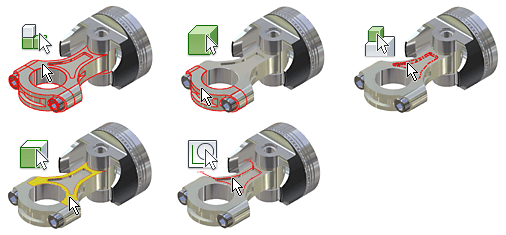
- Component Priority selects only the first-level components of the edited assembly.
- Part Priority mode selects parts instead of subassemblies, features, faces, or edges.
- Feature Priority mode selects features (including work features) on any part in the assembly.
- Select Faces and Edges mode selects faces, or edges on any part in the assembly.
- Select Sketch Features mode selects sketches.
To exclude invisible parts from the selection set, click Select on the Quick Access toolbar, choose Component Selection, and then click Select Visible Only.
Use one of the following methods to create the desired selection set:
Select All Occurrences
- On the Quick Access toolbar, click Select
 Select All Occurrences.
 - In the graphics window or the browser, select a component. All occurrences of the selected component are highlighted in the graphics window and the browser.
Select components constrained to the current selection
You can highlight components constrained to one or more selected components.
- On the Quick Access toolbar, click SelectConstrained To. All components constrained to the preselected components are highlighted in the graphics window and the browser.
- In the graphics window or the browser, select one or more components.
Create a selection set by component size
You can highlight components relative to the size of the selected component.
- On the Quick Access toolbar, click SelectComponent Size.
- If not preselected, use the Select command in the Select by Size dialog box to select a component. The size of the selected component is displayed in the Select by Size dialog box.
Note: The component size is determined by the diagonal length of the bounding box of the selected component.
- In the Select by Size dialog box, click At Most or At Least, and then set the value to specify the relative size.
Note: A percentage value can be used instead of an absolute value, as compared to the largest component in the priority object type.
Create a selection set offset by a box from the current selection
You can highlight components contained within the bounding box of the selected component plus an offset distance.
- On the Quick Access toolbar, click SelectComponent Offset.
- If not preselected, use the Select command in the Select by Offset box to select a component.
Selections are contained in a virtual box called a bounding box. Its size is determined by the outermost extremities of the selected component.
- The offset distance is shown, determined by the bounding box of the selected component. If desired, click a bounding box face, and then drag to resize. Select the check box to include components partially contained in the bounding box, and then click the green arrow.
Create a selection set offset by a sphere from the current selection
You can highlight components contained within a sphere surrounding the selected component plus an offset distance.
- On the Quick Access toolbar, click SelectSphere Offset.
- If not preselected, use the Select command in the Select by Sphere box to select a component.
Selections are contained in a virtual sphere whose radius is determined by the outermost extremities of the selected component.
- The offset radius is shown. If desired, click the sphere edge and drag to resize. Select the check box to include components partially contained in the sphere, and then click the green arrow.
Select components on the specified side of a plane
- On the Quick Access toolbar, click SelectSelect by Plane.
- If not preselected, select a work plane or planar face.
- If desired, click Direction in the Select by Plane dialog box to change the side of the plane to consider.
- To include partially contained components, select the Include partially contained option.
Select external components
You can select and highlight external components.
- On the Quick Access toolbar, click SelectExternal Components.
- Set the Percentage Visible option in the External dialog box to get the desired selection set. Setting 100% returns all components considered visible, while 0% returns only the most visible component.
Select internal components
You can select and highlight internal components.
- On the Quick Access toolbar, click SelectInternal Components.
- Set the Percentage Visible option in the Internal dialog box to get the desired selection set. Setting 100% returns all components not considered visible, while 1% returns all but the most visible component.
Select all components in the current view
You can select and highlight components all components "visible" in the current view plane.
- On the Quick Access toolbar, click SelectAll in Camera.
- Set the Percentage Visible option in the All in camera dialog box to get the desired selection set. Setting 100% returns all components in the view plane, while 1% returns only the most visible component.
Note: Selected components are highlighted in the graphic window and the browser.
After creating a selection set, you can further refine the view. You can isolate the selection set by turning off visibility of all components that are not selected. You can invert the selection, if needed, or revert to the previous selection set.
- If needed, right-click, and then select Isolate. Visibility is turned off for all components not included in the selection set, resulting in a simplified view of the assembly.
- To simplify the view further, you can turn off visibility of additional components.
- On the Quick Access toolbar, click SelectPrevious Selection to return to the previous selection set.
- Previous Selection does not reverse an Isolate operation. Right-click a component and select Undo Isolate to recover visibility.
- To reverse the selection set, click SelectInvert Selection. The current selections are canceled and the remaining components in the edit target are selected.
Use the Select command
The Select command highlights and selects objects in the graphics window of a part, assembly, presentation, or drawing. The selection priority can be changed by setting the select mode.
The following image shows how selection filters affect selections in a part document.
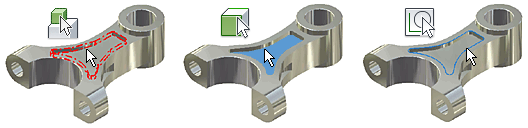
The following image shows how selection filters affect selections in an assembly document.
The following image shows how selection filters affect selections in a presentation document.
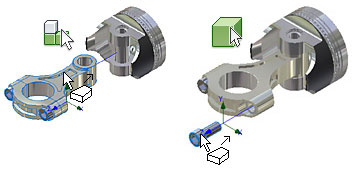
The following image shows how selection filters affect selections in a drawing document.
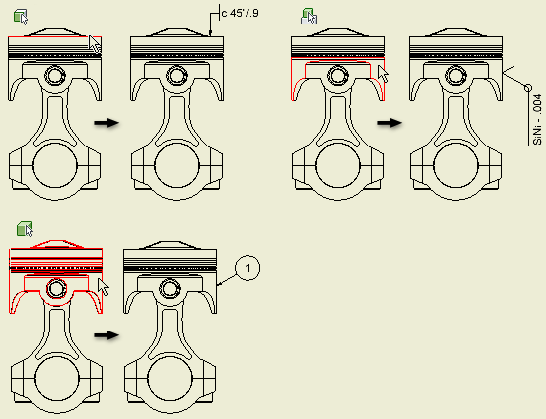
To select objects
- Click the arrow next to the Select command and select the mode from the list.
- Select the object in the graphics window. To select multiple objects, either Shift-click or Ctrl-click unselected objects to add them to the selection set.
- If the object selected is not the one desired, right-click, choose Select Other, and use the arrows to switch between selections.
To cancel object selections
Either left-click or Shift-click anywhere in the graphics window but not on an object. This action cancels the selection of all selected objects.
To remove objects from the selection set
Either Shift-click or Ctrl-click previously selected objects. All other objects are unaffected.
To use alternate methods to select and unselect objects
- Press the spacebar to cycle through available selections.
- If available, roll the mouse wheel to cycle through available selections.
- Select or unselect multiple objects at the same time by using a window-selection method. See Select objects with a selection window.
Select objects with a selection window
|
| Use the pointer to window-select objects in the graphics area. The window selection methods work in Part Sketch, Assembly, Assembly Sketch, Drawing, Drawing Sketch, Presentations, and Dynamic Simulation. |

Show Me how to select sketch geometry
To select objects enclosed by a selection window
- Position the pointer slightly above and to the left of the left-most object to select.
- Click and drag the pointer slightly below and to the right of the right-most object that you want to select.
All objects that are enclosed within the rectangle are selected and highlighted.
To select objects enclosed and intersected by a selection window
- Position the pointer slightly below and to the right of the right-most object to select.
- Click and drag the pointer slightly above and to the left of the left-most object that you want to select.
All objects that are enclosed within and intersected by the rectangle are selected and highlighted.
To add or remove objects from the selection set using a selection window
Hold the Shift key, click, and drag to encompass a specified area. This action selects all previously unselected objects in the selection window and leaves the others unchanged.
Hold the Ctrl key, click, and drag to encompass a specified area. This action inverts the selection status of all objects in the selection window. In other words, the action selects all previously unselected objects and unselects all previously selected objects.
Select multiple objects in a drawing view
You can select multiple objects within a drawing view two ways:
- Click and drag to create a window selection.
- Press and hold the SHIFT or CTRL key and click each object to add to the selection set.
Note: You can remove an object from a selection set by pressing and holding the SHIFT key, and then clicking one or more objects to remove.
The direction of the selection window affects what is selected:
- Click and drag left to right to select all geometry enclosed within the selection window.
- Click and drag right to left to select all geometry enclosed within and intersected by the selection window.
Design Data
The Design Data folder provides a way for administrators to manage content. Many of the design-specific files, such as the styles, thread, and so on, files are installed here.
The location of the Design Data folder is by default:
Microsoft Windows XP: Program FilesAutodeskAutodesk Inventor[version]Design Data.
Microsoft Vista: UsersPublicDocumentsAutodeskAutodesk Inventor [version]Design Data.
Note: You can easily relocate the entire Design Data folder to a network location. All users can automatically get any file edits made in this location. You can define different network locations on both a per-project basis or application wide.
Note: The Design data folder pointed to must contain the entire copy of all the files in the originally installed location. Autodesk Inventor checks to validate all files are present upon changing the location.
Autodesk Inventor allows an incomplete Design Data folder for legacy and Pack and Go projects. Autodesk Inventor locates the missing files in the default legacy install location
Tip: Following a network deployment, alert the users that this data is shared on the network. Also, tell them that edits to local copies of the shared data have no effect on the local behavior unless the local install points to the local copy of the data.
To change the location of the Design Data folder application wide, edit the "Design Data (Styles, and so on)" option in the Application Options dialog box on the Files tab.
- Click
 Options, and then click the File tab.
 - In the Design Data (Styles, and so on) text box enter the UNC path to the network location, or click Browse to locate and specify the path.
- Click OK.
To change the location of the Design Data folder for a project, edit the "Design Data (Styles, and so on)" option in the Projects dialog box.
- Click ManageProjects.
- Select the Project you want to edit.
- Expand the Folder Options folder. Right-click on Design Data (Styles, and so on), and select Edit.
- In the text box enter the UNC path to the network location, or click Browse to locate and specify the path.
- Click Save.
Assembly Select command
Sets the selection mode and selects the elements to work with in assemblies.
| Access: | On the Quick Access toolbar, click the arrow on the Select command. |
|
| Component Priority Sets the command to select complete components. A component can be a part or subassembly. You cannot select a child part or component of a subassembly. |
|
| Part Priority Sets the command to select parts whether they were added to the assembly as a single part or as a component in a subassembly. You cannot select features or sketch geometry for a part. |
|
| Feature Priority Sets the command to select features (including work features) on any part in the assembly. |
|
| Select Faces and Edges Sets the command to select faces on any part in the assembly. You can also highlight and select faces or the individual curves that define faces. |
|
| Select Sketch Features Sets the command to select sketch geometry used to create features. You can also highlight and select sketches or the individual curves that define sketches. |
|
| Select Visible Only Includes only visible components in a selection set. Select Visible Only is applied for all selection methods. |
|
| Enable Prehighlight Shows prehighlighting when the cursor moves over an object. The command is activated by default. In the assembly and weldment environments, when turned off, prehighlighting does not show during component or part selection priority. This setting does not affect the Select Other command, which always shows prehighlighting. The Enable Prehighlight command also is available from the Application Options dialog box, General tab. |


Component selection options create a set according to specific criteria. The selected set can be used in other Autodesk Inventor operations, such as adjusting visibility.
|
| Select All Occurrences Selects all occurrences of the selected model in the current file. |
|
| Constrained To Selects and highlights components constrained to one or more preselected components. |
|
| Component Size Selects and highlights components of the size set in the Select by Size box. Size is shown, determined by the diagonal of the bounding box of the selected components. Click the arrow to select a component to measure its size, if desired. Select option to select components greater than or less than component size. Percentage can also be used, with 100% as the largest component size. |
|
| Component Offset Selects and highlights components contained within the bounding box of the selected components plus an offset distance. The offset distance is set in the Select by Offset box, or you can click a face and drag to resize. Click the arrow to use the Measure command, if appropriate. Select the check box to highlight partially contained components. |
|
| Sphere Offset Selects and highlights components contained within a sphere surrounding the selected components. Sphere size is set in the Select by Sphere box, or you can click the sphere edge and drag to resize. Click the arrow to use the Measure command, if appropriate. Select the check box to highlight partially contained components. |
|
| Select by Plane Selects and highlights components on the specified side of a plane. The bounding plane and the side (direction) is selected in the Select by Plane box. Select the check box to highlight partially contained components. |
|
| External Components Selects and highlights external components. Set the Percentage Visible option to get the desired sensitivity. |
|
| Internal Components Selects and highlights hidden (internal) components. Set the Percentage Visible option to get the desired sensitivity. |
|
| All in Camera Selects and highlights all components "visible" in the current view plane. Set the Percentage Visible option to get the desired sensitivity. |


Note: Some of the previous commands provide a Compact Selection Set check box. When selected, if all children of an assembly are selected due to command settings, the command consolidates the children to their parent assembly. This increases efficiency in such actions as turning off and on visibility because fewer occurrences have attribute changes, although the result is the same.
|
| Invert Selection |
|
| Previous Selection Reselects the previous selection set. Remembers only one previous set. |

Sets the selection mode and selects the elements to work with in part modeling.
|
| Select Bodies Sets the command to select solid or surface bodies on the part. |
|
| Select Features Sets the command to select features on the part. You can highlight and select features or the individual curves that define features. |
|
| Select Faces Sets the command to select faces and edges on the part. |
|
| Select Sketches Sets the command to select sketch geometry used to create features. You can also highlight and select sketches or the individual curves that define sketches. |

|
| Component Priority sets the command to select complete components. A component can be a part or subassembly. You cannot select a child part or component of a subassembly. |
|
| Leaf Part Priority sets the command to select parts whether they were added to the assembly as a single part, or as a component in a subassembly. You cannot select features or sketch geometry for a part. |
Sets the selection mode and filter set, and selects the elements to work with in drawings.
| Access: | On the Quick Access toolbar, click the arrow on the Select command. |
Select Modes
| Sets the mode for selecting elements of parts and assemblies in drawing views. | |
|
| Select Edge Priority sets the command to select edges on parts. |
|
| Select Feature Priority sets the command to select features on parts. |
|
| Select Part Priority sets the command to select parts. |
|
| Select All Inventor Dimensions selects all dimensions in the current sheet and places them in a new selection set. |
|
| Select All Model Dimensions selects all model dimensions in the current sheet and places them in a new selection set. |
|
| Select All Overridden Dimensions selects all overridden dimensions in the current sheet and places them in a new selection set. Note: Overridden dimensions are dimensions with values that you either changed or hid their values. |
|
| Select All AutoCAD Dimensions (available for DWG files only) selects all AutoCAD dimensions in the current sheet and places them in a new selection set. |


Select Filters
| Specifies a filter set that determines which elements can be selected when working in a drawing. You can customize the filter sets using the Select Filters option. Click a filter set to apply it. | |
|
| Edit Select Filters opens the Select Filters dialog box, where you can specify filters to activate for each filter type. All filters are listed, and can be selected or deselected as desired. |
|
| Select All applies all selected filters in all filter types to elements in a drawing. |
|
| Layout filter type activates the specified filter types to apply to drawing views. |
|
| Detail filter type applies a filter set to select details such as dimensions, centerlines, center marks, and text, but suppresses selection of other elements such as symbols. |
|
| Custom filter type applies a customized filter set. |


Select filters
Specifies the elements that can be selected when using the Select command filter sets in drawings.
| Access: | On the Quick Access toolbar, click the arrow on the Select command and then click Edit Select Filters. |
| Filter Set | Specifies the Custom, Detail, or Layout, filter set to change. Click the arrow and select the filter set from the list. |
| Filters | Lists the filters available for the selected filter type. Selected filters can be selected in the drawing. Click to add a filter or clear the check mark to omit the filter from the set. |
|
| Select All selects the entire list and makes them available in the drawing. Select None clears the check mark from all filter types. Invert Selection toggles between selected and unselected filters. |