Revolved features
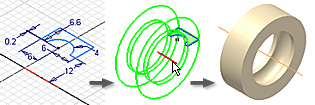
Revolved features are created by sweeping one or more sketched profiles around an axis. If the revolved feature is the first feature in a part file, it is the base feature.
Use Revolve to create a new solid body in a multi-body part. A new solid body creates an independent feature which can be edited as a separate entity.
A surface can be created from a revolved profile, and then used as a termination plane for other features or a split tool for a split part.
The profile can be revolved through any angle measuring between zero and 360 degrees around an axis. The axis of revolution can be part of the profile or offset from it. The profile and axis must be coplanar.
Revolved assembly features are used to cut through other parts.
How are revolved features used?
The Revolve command is used to create features having radial symmetry, such as stepped shafts, cylindrical containers, or O-rings. Such features can define the overall shape of a part (a base feature) or become details such as fins, webs, or struts.
If you want to create a shaft, use can use the Shaft Component Generator. Shaft generator is available in assembly files only. In an assembly file, on the ribbon, click Design tab, Power Transmission panel.
Revolved surfaces can be used to define shapes. For example, a curved surface can be used as a termination plane for cuts in a housing.
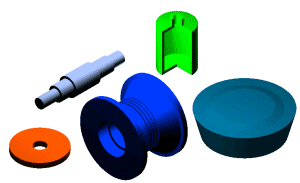
What defines the size and shape of a revolved feature?
The final size and shape of a revolved feature are determined by the dimensions of the sketch profile and the angle through which the profile is revolved.
Revolving around an axis on the sketch produces solid features, such as disks, hubs, and beveled gear blanks. Revolving around an axis that is offset from the sketch creates solids with holes, such as washers, flasks, and conduits.
You can use an open or closed profile to create a surface, which can be used as a construction surface or to design complex shapes.
How is the shape propagation applied?
|
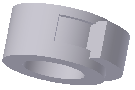
| Shape propagation only applies to open profiles. It describes solutions that are defined through the extension of the open ends of the profile and by the shape of the body. Shape propagation generates a feature that is robust to topology changes in the part body caused by editing features higher up in the feature tree. The revolved feature is not dependent upon a strictly defined profile consisting of specific referenced edges and sketch lines. There are two types of shape propagation: Match Contour and Match Shape. |
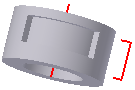
|
| Match Contour When the Match Shape option is disabled, the open profile is closed by extending the open ends of the profile until they intersect the solid body. If the sketch plane of the profile lies on a planar face, the loops of the face are used to close the profile. Otherwise, the edges defined by the intersection of the profile plane with the body are used to close the profile. A valid profile exists if both ends of the open profile intersect either the body or the revolve axis. Mixed sets are not valid. When a closed profile is created, you select Side to Keep for the profile. |
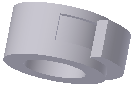
|
| Match Shape When the Match Shape option is selected, a flood-fill type solution is created. The open ends of the profile are extended to the axis of revolution, if possible, or to the bounding box of the body. The Match Shape revolution generates a stable and predictable body for topology changes on the defining faces. The revolved feature is not dependent on a strictly defined profile consisting of sketch lines and referenced edges. |
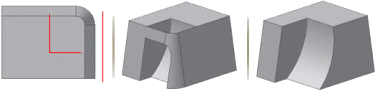
Note: If you use the Cut option in the Revolve dialog box, you can use the Match Shape option to remove the material with respect to the shape of the body. The difference between canceling the selection and selecting the Match Shape option is illustrated in the following example.
Create a revolved feature
On the Model tab, Create panel, click Revolve to create a feature or new solid body by rotating one or more sketched profiles around an axis. The axis and the profile must be coplanar. The first feature is the base solid feature.
If you use the Revolve command to create an assembly feature, only the solid output and cut operations are supported.
To begin, sketch a closed profile that represents the cross section of the revolved feature you want to create.
|
|
|
Show Me how to create a revolved feature
Show Me how to use the To Next termination with a revolved feature
Show Me how to use the To termination with a revolved feature
Show Me how to use the Between termination with a revolved feature
Revolve
Creates a feature or body by revolving one or more sketched profiles around an axis. Except for surfaces, profiles must be closed loops.
| Access: | Ribbon: Model tab  Create panel Revolve Create panel Revolve  |
Shape
| Profile Selects a profile to revolve. If there are multiple profiles and none are selected, click Profile, and then click one or more profiles in the graphics window. Press Ctrl, and then click to remove a profile from the selection set. | |
|
| Single Profile Automatically selects a profile. |
|
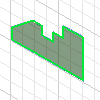
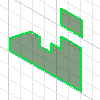
| Multiple Profiles Selects multiple profiles from same sketch plane. Selections are highlighted. |
|
| Nested Profiles Selects multiple nested profiles. The result of revolving an interior loop is opposite the result of revolving an exterior loop. For example, revolved concentric circles form a hollow torus. |
| Axis Selects the axis of revolution. The axis can be a work axis, a construction line, or a normal line. | |
| Solids Selects the participating solid body in a multi-body part. | |
Output
| Specifies if the revolved feature is a solid or surface. | |
| Solid | Creates a solid feature from an open or closed profile. Open profile is not available for base features. |
| Surface | Creates a surface feature from an open or closed profile. Can be used as a construction surface on which other features terminate or used as a split tool to create a split part. Not available in the assembly environment. |
Operation
| Specifies whether the revolution joins, cuts, or intersects with another feature. Not available for base features but required for all other features. | |
|
| Join Adds the volume created by the revolved feature to another feature or body. Not available in the assembly environment. |
|
| Cut Removes the volume created by the revolved feature from another feature or body. |
|
| Intersect Creates a feature from the shared volume of the revolved feature and another feature or body. Material not included in the shared volume is deleted. Not available in the assembly environment. |
|
| New solid Creates a new solid body. This is the default selection if the revolve is the first solid feature in a part file. Select to create a new body in a part file with one or more solid bodies. Each body is an independent collection of features separate from other bodies. A body can share features with other bodies. |


Extents
Note: The options available in the drop-down list depends on the available geometry in the file.
Determines the method for the revolution and sets the angular displacement of the profile around a centerline. Click the arrow to list the extent methods, select one, and then enter a value. Revolutions can be a specific distance or can terminate on a work plane or part face.
Angle The default method accepts one angular value only. Revolves the profile through the specified angle.
Direction arrows specify direction of revolution or if equally divided in both directions.
Angle - Angle Accepts two different angular values to revolve the profile in two directions - one positive and one negative. Click Asymmetric to activate and enter the second angular displacement value.
Direction arrows reverse the two angular displacements so that the positive angle becomes negative and the negative angle becomes positive.
Full Revolves the profile 360 degrees.
To For part revolutions, selects an ending face or plane on which to terminate the revolution. Terminates the part feature on the selected face, or on a face that extends beyond the termination plane.
For assembly revolutions, selects a face or plane on which to terminate the revolution. Faces and planes that reside on other components can be selected. The selected faces or planes must reside on the same assembly level as the assembly revolution being created.
Between For part revolve features, selects beginning and ending faces or planes on which to terminate the revolution.
For assembly revolve features, selects a face or plane on which to terminate the revolution. Faces and planes that reside on other components can be selected. The selected faces or planes must reside on the same assembly level as the assembly revolution being created. Not available for base features.
To - Next Selects the next possible face or plane on which to terminate the revolution in the specified direction. Dragging the profile flips the revolution to either side of the sketch plane. Not available for base features or assembly revolutions. Terminator selects a solid or surface on which to terminate the revolution. Flip specifies the direction.
Note: For To Next, click the body to end the feature creation
Match Shape
Selects the type of shape propagation: Match Contour or Match Shape. This option is available in the part environment when you select an open profile.
|
| Match Shape When the Match Shape option is selected, a flood-fill type revolved feature is created. The open ends of the profile are extended to the axis of revolution (if possible), or to the bounding box of the body. The Match Shape revolution generates a stable and predictable body for topology changes on the defining faces. |
|
| Match Contour If you cancel the Match Shape option, the open profile is closed by extending the open ends of the profile to the part, and closing the gap between them by including edges defined by the intersection of the sketch plane and the part. The extrusion is created as if you specified a closed profile. |
Infer iMate
Select the check box to place an iMate automatically on a full circular edge. Autodesk Inventor attempts to place the iMate on the closed loop most likely to be useful. In most cases, place only one or two iMates per part.