Positional representations in assemblies
Positional representations capture kinematic "snapshots" of assemblies to allow for motion studies and evaluation of an assembly in various positions. Positional representations are saved in the parent assembly and can be retrieved at any time for further analysis or modification.
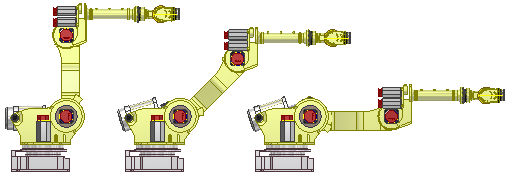
They are often used in conjunction with flexible assemblies to both set a subassembly to a given kinematic state, and leave remaining degrees of freedom exposed to the parent assembly.
In a positional representation, adaptivity is deferred. Adaptive part features and assembly features do not update. Adaptive assemblies are implicitly flexible and update, but the results are not pushed down to the subassembly.
What is the meaning of the master positional representation?
Each assembly has a master positional representation that represents the default state of the assembly, where modeling operations take place. You cannot edit the master positional representation, but all new positional representations are copies of the master. You make changes to each as needed, and then re-activate the master positional representation to save the assembly.
The master representation is a kind of "fail-safe" state. You can create many positional representations with various states of the assembly and might lose track of assembly positions, visibility, constraint settings and other values of the original assembly. No matter how many positional representations you create, you can always return to the default state of the assembly by making the master representation active.
What is the Representation browser?
The representation browser is a detailed view of all the representations in the assembly file. You can:
- Create a new representation.
- Activate a representation.
- Copy a representation.
- Delete a representation.
- Edit cells that represent values in the representation in a spreadsheet.
For more information, see the Position representation browser reference
How are positional representations different from design view representations?
A design view representation preserves an assembly display state. It captures, work feature, and component visibility, color and style characteristics, and zoom and magnification settings. It can also capture the visibility state of sketches that are controlled by the Object Visibility command.
A positional representation incorporates all the settings in the active design view as well as flexibility state of subassemblies, component enabled status, and may also include settings such as offsets and suppression of constraints and patterns. Use a positional representation to manipulate the assembly for kinematic study and save the state in the assembly file.
Both design view representations and positional representations can reflect settings of nested subassemblies, taking into account the kind of information each representation stores. Both store information in the assembly, except that you can specify an external .idv file to store a private design view representation.
New design view representations are based on the current state of the assembly. New positional representations copy the state of the master representation, which you can modify as needed.
What are guidelines for using positional representations?
You can perform the following operations when a positional representation is active:
- Change component placement by constraint value or move the component.
- Modify parameters.
- Change flexibility status of subassemblies.
- Turn visibility on and off.
These operations are not allowed in an active positional representation. You cannot:
- Add, delete, or reorder components.
- Restructure the assembly.
- Change the count of a pattern.
- Create or delete work features.
- Create, modify, or delete assembly features or iMates.
- Make components adaptive.
How are changes to a positional representation saved?
You can work on positional representations nested in the assembly hierarchy. However, the master positional representation must be active to save the file. For example, the top-level assembly may have the master positional representation active, but changes have been made to positional representations of nested subassemblies. If a nested subassembly is not in the master position when you save, click OK when you are prompted to save the master assembly.
Note: To save modifications made in a positional representation at any level in the assembly hierarchy, click the master node of the top-level assembly in the browser to make it active, and then click Save.
Create or edit Positional representations
Use Positional representations to capture kinematic "snapshots" of assemblies for motion studies and other purposes where you require a specific view. Positional representations are often used in conjunction with flexible assemblies to show component occurrences in various positions within an assembly.
Positional representations are saved in the parent assembly.
Create a Positional representation
An assembly file has a master Positional representation that represents the default state of the assembly. When you create a new Positional representation, the master is copied.
- In the browser, click to expand the Representations folder.
- Right-click Position, and then select New. The new Positional representation is activated and nested below the master, using the default name Position1.
- Additional representation names are incremented unless you change the name.
- If appropriate, click the Positional representation in the browser, and then enter a new name.
- Establish overrides to constraints and components.
- Click Save to save changes. The Positional representation is saved in the assembly file..
Edit a Positional representation
Use context menu options to modify the active Positional representation.
- Right-click the Positional representation in the browser, and then select Activate.
- Select a component or constraints for which an override needs to be edited or created, and then right-click and select Override.
- Click Save to preserve your settings in the Positional representation.
Tip: Tip:If you create a complex Positional representation, you may find it easier to manipulate values using the Microsoft Excel spreadsheet instead of context menu options. See Manage assembly Positional representations in a spreadsheet.
You can override constraints, pattern offsets, component placement, or representations. See Override values in Positional representations for step-by-step instructions.
Change to a different Positional representation
Multiple Positional representations may be saved in an assembly file.
- In the browser, click the Representations folder to expand.
- Right-click the positional view you want to use, and then select Activate.
The active Positional representation is indicated by a check mark beside its name in the browser.
Specify a Positional representation when opening an assembly
Because an assembly file may contain multiple Positional representations, you can specify one when you open the file or place it as a component in an assembly.
- Use

 Open to find the assembly file.
 - In the Open File dialog box, browse to the assembly file you want to open, and then click Options.
- In the File Open Options dialog box, select a public or private Design View representation, if appropriate.
- Click the arrow on the Positional Representation box and then select one of the listed names.
- Click OK to close the dialog box, and then click Open.
The assembly is displayed with the selected Positional representation activated.
Copy a Positional representation
You may save time by copying a Positional representation and then making adjustments as needed.
- In the browser, click the Representations folder to expand.
- Right-click the Positional representation and select Copy.
The copied representation is placed in the browser at the same level as the master representation. By default, its name is the same as the copied representation, but is incremented.
Delete a Positional representation
You can remove a Positional representation from an assembly.
- In the browser, click the Representations folder to expand.
- Right-click the Positional representation, and then select Delete.
If the deleted representation was active, the master becomes the active representation.
If you deleted a representation by mistake, click Undo to restore it.
Manage positional representations in spreadsheets
If you create a complex positional representation, you may find it easier to manipulate values using the Microsoft Excel spreadsheet instead of context menu options. All the values set in the positional representation are presented in a tabular format. You can enter formulas in cells to calculate values, and then select multiple cells to edit at once.
What do the column headers mean?
Columns headers identify the value set. For example, an offset setting for a flush constraint would be indicated by Flush:3 (Offset) where '3' represents the third flush setting specified.
What rules apply when editing the spreadsheet?
The spreadsheet is an editing environment for manipulating the values of positional representations. When you have changed values, you return to Autodesk Inventor. Changes to the spread sheet are saved in the assembly file.
Follow these rules when editing in the spreadsheet:
- For Boolean operations, use True or False to indicate if the value is on or off. Do not use T/F, 1/0 or other syntax.
- For strings, use a real number plus the unit string. For example, 10.03 cm.
- Do not edit the column headers.
- Do not add, remove, reorder, or edit column headers.
- Do not remove, reorder, or rename rows.
Note: A component's flexibility status can be Flexible, Non-flexible, or Adaptive. In this case, Non-flexible indicates the master state of the component.
- Click the Representations folder in the browser and double-click a positional representation to make it active. You cannot edit the master representation.
- On the Representation browser, click the Microsoft Excel command on the browser header.
- In the spreadsheet, edit cells using Excel commands to create formulas used to calculate values, edit multiple cells, and format cells.
You can use color and change font as desired, but it has no effect on the values.
- On the Quick Access toolbar, click Return to Autodesk Inventor. Click Save to save the edits in the assembly.
Override values in positional representations
In the active positional representation, use the Override Object dialog box to override suppression status or constraint value, grounding status, positional offset values, flexibility status, and nested positional representations.
You cannot override values in the master positional representation.The master positional representation is the default state of the assembly, where all modeling tasks are performed.
Tip: You can quickly override one or a few values without accessing the Override Objects dialog box. For example, right-click a constraint in the browser and select Modify (Override). Or, right-click a component name and select Grounded (Override) to change the grounding state.
- In the browser, click to expand the Representations folder, and then double-click to activate the desired positional representation.
- In the browser or graphics window, right-click the object to override, and then select Override to open the Override Object dialog box. For example, right-click a constraint. The Constraint tab is automatically selected.
- For the property you want to override, select the Override check box, and then set the desired value.
- Click Apply and continue to set overrides as desired.
- Click OK to close the dialog box. Objects with overrides are indicated by bold text in the browser, and show the override value in parentheses.
Autodesk Inventor may move components to solve a positional representation with position offset overrides. To prevent components from moving, select the Component Placement tab, and then select the Grounding Override check box.
Tip: To remove overrides, right-click the object and select the Remove Override menu option.
Control positional representations
Positional representations enable you to evaluate alternate kinematic states of an assembly. By creating overrides on such items as constraint values or component placements, multiple positional representations (PRs) can be created, each capturing different solve states for an assembly.
Positional representations can be used by parent assemblies, drawing views, and derived assemblies. They are intended only for kinematics evaluation, and not for design intent changes. Any change in the assembly design intent, such as adding or deleting components, or editing assembly features, must be made in the Master positional representation.
An assembly may call upon a PR of a subassembly in two primary ways. The first is to set the subassembly to a given PR, similar to associatively calling a design view representation. The second is through nesting: a PR in the parent assembly has an override on the subassembly, setting a PR for that assembly.
Tip:
- The first method should be used when the Master state of the parent assembly is best defined not by the Master state of the subassembly, but by a PR of the subassembly, such as a hydraulic cylinder in a closed position.
- The second, more common method, should be used when various PRs of subassemblies help define a corresponding PR in the parent assembly.
Workflow 1: Controlling positional representations within the subassembly
- Open an assembly file containing a subassembly with positional representations:
-
Default Tutorial files and Samples install locations:
XP operating system
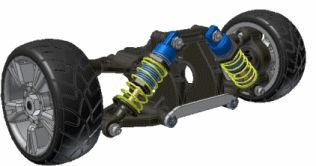
- Sample files: Program Files\Autodesk\Inventor [version]\Samples\Models\Assemblies\Suspension\Suspension.iam. Note the two shock absorbers.
Vista operating system
- Sample files: Users\Public\Documents\Autodesk\Inventor [version]\Samples\Models\Assemblies\Suspension\Suspension.iam. Note the two shock absorbers.
-
- Expand the browser on the first shock subassembly, Front 1.3 Shock:1, and then expand the Representations folder.
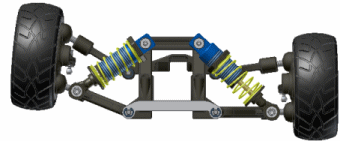
- Note the Position node, which indicates the subassembly is set to its Master state. Expand this folder, and activate the existing Closed PR. Note the parent assembly reacts by lifting the suspension up in response to the change in solve state for the shock.
- Close the file. Do not save changes.
Workflow 2: Nesting a positional representation with an override.
- Open an assembly file containing a subassembly and create a positional representation in the main assembly:
- Open C:\Program Files [(x86)]\Autodesk\Inventor [version]\Samples\Models\Representations\Suspension\Suspension.iam. Note the two shock absorbers.
- Open C:\Program Files [(x86)]\Autodesk\Inventor [version]\Samples\Models\Representations\Suspension\Suspension.iam. Note the two shock absorbers.
- Expand the Representations folder for the Suspension.iam assembly, and then expand the Position node.
- Using the right mouse button, click on the Position node, and select New. Rename the new PR to Left Bump.
We have now created a PR in the top assembly, which has no overrides, so it looks just like the Master PR.
- Right-mouse click on the second shock subassembly, Front 1.3 Shock:2, and select Override.
- In the Override dialog, choose the Representation tab, and check the Override toggle for positional representations, and then set the PR to Closed. Close the dialog.
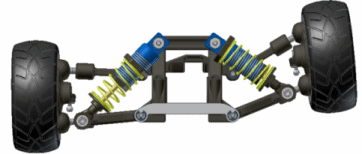
- The Left Bump PR of the top assembly is now nesting the shock absorber's Closed PR. By activating the Master and Left Bump PRs of the top assembly, you can quickly see the effect of the left shock closing fully.
- Keep the file open and try creating further overrides to other objects, such as the right shock, or constraints.
Positional representations browser
Presents a detailed view of the positional representations in the assembly file. Activates, organizes and manipulates positional representations and accesses commands.
| Access: | Click the arrow on the browser panel header, and then select Representations. |
| New | Opens the New Representation dialog box. Enter a name in the box, and then click OK. The new representation is the active representation. |
| Verify | Recomputes all positional representations to make sure they are all valid. For example, editing in the master representation may change positions or other data in a positional representation. |
| Spreadsheet | Opens the Microsoft Excel spreadsheet. Accesses values set in the positional representation in a tabular form, and allows entry of formulas in cells. Multiple cells can be selected and edited simultaneously. You can add rows. You cannot add, remove, reorder, or edit column headers, or delete rows or columns. Unlike iParts, the spreadsheet is not an embedded Excel document, but is only an editing environment. |
| Delete | Deletes the selected positional representation. |
| Copy | Copies the selected positional representation. |
| Activate | Makes the selected positional representation active. |
Override Objects
For assemblies that participate in a positional representation, the Override Objects dialog box overrides suppression status or constraint value, grounding status, offset values, and flexibility status. Used to make in-process adjustments to positions of objects in the current positional representation. Items with overrides are indicated by bold text in the browser, with the override value in parentheses.
You cannot override values in the master positional representation. The master positional representation is the default state of the assembly, where all modeling tasks are performed
Tip: You can quickly override one or a few values without accessing the Override Objects dialog box. For example, right-click a constraint in the browser and select Modify (Override). Or, right-click a component name and select Grounded (Override) to change the grounding state.
| Access: | In the browser, double-click a positional representation to make it active. In the graphics window or browser, right-click an object that participates in a positional representation, and then select Override to open the Override Objects dialog box. |
On each tab, objects that cannot be overridden are not available.
Positional Representation
Click the arrow to select a positional representation.
Constraint tab
| Sets or clears overrides of suppressed constraints and values. | |
| Suppression | Select the check box to override suppressed constraints. When more than one constraint is suppressed, click the arrow to select from the list. |
| Value | Indicates the constraint value, if appropriate. Select the check box to override the selected value. When more than one value is available, click the arrow to select from the list. |
Pattern tab
| Sets or clears overrides of pattern offset values. If more than one offset value is available, click the arrow to select from the list. | |
| Rectangular pattern | Select the check box to override Row Offset or Column Offset. |
| Circular pattern | Select the check box to override the Angle Offset. |
Component tab
| Sets or clears overrides of grounding status or positional offset value. | |
| Grounding | Click the arrow to select grounded or ungrounded from the list, and then click the check box to override the status. |
| Position Offset | Select the check box to override the offset position of the selected component. |
| Positional Representation | Select the check box to override the current positional representation. |
| Flexible Status | Select the check box to override the flexible status. Click the arrow to select Flexible or Non-flexible from the list. |