Combine solid bodies
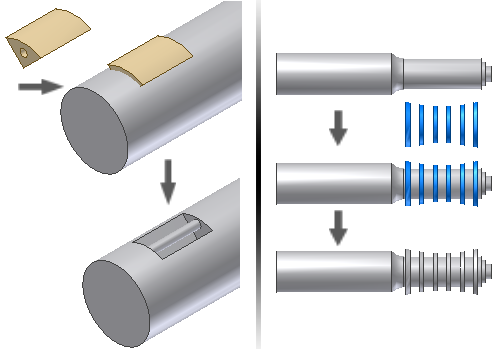
The combine command provides a means to use a join, cut, or intersect operation on selected solid bodies. You can create the bodies in place or you can import bodies using the Derived Component command.
Use the Move Bodies command to position the bodies in the correct location before using combine or create the bodies in the required location to eliminate the need to move the body.
When you use the combine command, the Base body is the solid being acted upon and the Tool body is the solid performing the action on the base. You can select more than one toolbody to use in a combine operation.
The default behavior when you combine bodies is to consume the toolbodies and modify the base. Choose the option to retain the original toolbodies as separate solids if you do not want to consume the solids. Retained solids are invisible when you finish the command. If you delete the combine operation, the original solid body is available in the Solid Bodies folder. If you delete a combine operation, enable the visibility of the original bodies in the browser.
To begin, create a multi-body part and position the bodies you want to combine in the correct location. The most efficient way to position the bodies is to create them in place using feature create commands with the New solid option. You can also use the Derived Component command to import components to use as toolbodies. Use the Move Bodies command to precisely position the toolbodies.
Joins one or more solid bodies by combining their volume. A join adds the volume of the toolbodies to the base. A cut removes the volume of the toolbodies from the base. Intersect modifies the base solid from the shared volume of the selected bodies.
Access: |   |
Selects two or more bodies to consolidate. | |
Base | Selects the solid body acted upon. |
nToolbody | Selects one or more bodies to act on the base solid body. The number in parentheses displays the current number of toolbodies selected. |
| Keep Toolbody | Select to retain the toolbody included in the operation as an independent body. The visibility is turned off after the operation. If not selected, the toolbody is consumed and cannot be used for additional operations. |
Specifies whether the combine operation joins, cuts, or intersects the selected bodies. | |
Join | Adds the volume of the base and the selected toolbodies together. |
Cut | Subtracts the volume of the selected toolbodies from the base body. |
Intersect | Modifies the base solid from the shared volume of the base body and the selected toolbodies. |