Lighting Styles
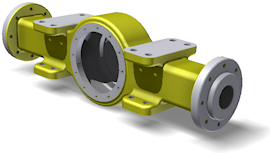
There are three types of lighting methods that can be used for viewing models:
- Standard lighting
- Image Based Lighting
- Combination of standard and image-based lighting.
Standard lighting consists of four lights, each of which can be on or off.
Standard lights are directional lights. Their position can be edited in relation to the model. Two position sliders adjust the light direction:
- Horizontal (azimuth): Zero at the eye, -90 at left, +90 at right, and +-180 from behind, shining toward the camera
- Vertical (altitude): zero at the eye, +90 coming from directly above, -90 coming from directly below
The lighting results differ based on the light Relative movement setting:
 Camera space lights are fixed to the view camera or what is commonly referred to as screen space or your eye position. As the camera and lights move through the scene, the shadows update in real time. Light position settings are relative to the screen.
  ViewCube space lights are positioned relative to the ViewCube Front face. This method allows you to rotate the model and have the shadows stay relative to the model without regard for camera position.
Image-based lights, also called IBL, derive their lighting parameters from high dynamic range (HDR) images. The image provides a source location and luminance or radiance values that correspond more with real world lighting, providing a more realistic viewing experience. The scene lighting is derived from this 360 degree image providing more realistic results.
The IBL image source can be used as a 3D background in the scene. The background provides visual continuity with the light source and is seen in materials defined with high reflectance values.
The active lighting style sets the direction and appearance of shadows.
To display shadows, select All Shadows from the Shadows list on the  .
.
Inventor Studio light settings differences
In Inventor Studio, the major differences from above are:
- A lighting style consists of an unlimited number of lights (however, only a limited number (8) are currently represented on screen).
- Lights are positioned in world space - that is, their position is constant relative to model objects in the scene, even when the camera moves.
- Lights can be:
- Directional: infinitely far away, with light coming in parallel rays from a given direction (like the sun).
- Point: at a defined position in world space, radiating in all directions equally.
- Spot: at a defined position in world space, pointing in a given direction, with output strongest along the direction they point, falling off over a given angle.
- Ambient light in the scene can be defined in more complex ways for offline rendering.
- Each light can have a different shadow density, softness, and effect in the scene.
See Inventor Studio documentation for details.
- On the ribbon, click .
- In the Style and Standard Editor, expand Lighting to display available lighting styles.
- To edit a lighting style, click the style, and change its settings on the Lighting Style panel. See the Style and Standard Editor - Lighting Style reference for more information.
- To create a lighting style, select an existing lighting style to use as a template, click New, and enter the style name. Then edit settings of the new lighting style.
- Click Save to save changes to the current document.
- Click Done to close the Style and Standard Editor.
 How to edit a lighting style
Add IBL Environments for lighting styles
Producing IBL environments for Inventor requires a level of photographic skill, used to product HDR images, and image editing technique. You can obtain and use additional IBL Environments with Inventor lighting styles.
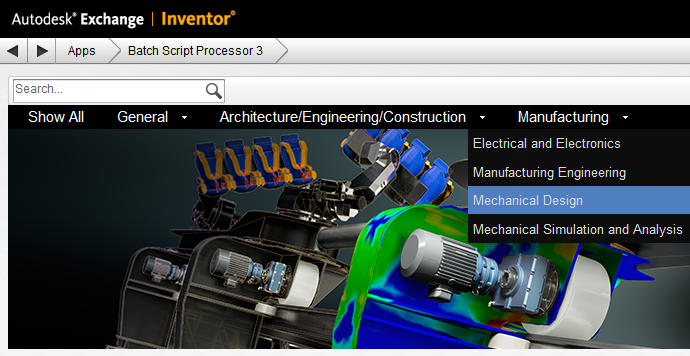
Obtain additional IBL Environments
 .
. 
To use the new IBL Environment you must do either of the following:
Modify an existing lighting style
- On the Manage tab Styles and Standards panel click Styles Editor.
- Select an IBL lighting style where you want to use the new IBL environment.
- In the Image Based Lighting section, change the Source by selecting the new IBL environment from the dropdown list.
- Click Save.
- In the View tab Appearance panel, select the modified Lighting Style.
- On the Manage tab Styles and Standards panel click Styles Editor.
- Right-click an IBL Lighting style and click New Style.
- In the New Local Style dialog box, change the name to indicate the new IBL environment.
- In the Image Based Lighting section, change the Source by selecting the new IBL environment from the dropdown list.
- Click Save.
- Optional: In the Style browser, right-click the new lighting style and click Save to Style Library.
- In the View tab Appearance panel, select the new Lighting Style.
Style and Standard Editor - Lighting Style

Light | |
Switches lights on and off, and selects lights to edit. | |
|
| Click to switch a light on or off. |
|
| Click to select a light. |


 Associates the selected light with the view camera. The behavior is like walking around in a room while using a video camera with its light on.
  Associates the selected light with the ViewCube. The scene provides the lighting and the lights do not move with the camera.
  Move the cursor over this image to display a helpful message about positioning the image.