Boss features
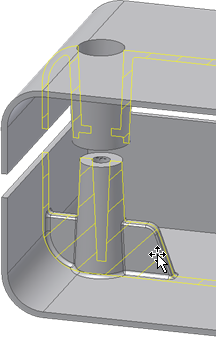
A Boss feature is placed at a point centered on the mating face of the head and the thread. The Boss is then extended to the next face of the target part body. To design the two mating components in the two opposite bodies, use the same placement elements with opposite directions.
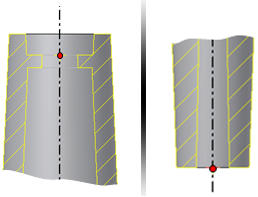
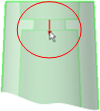
This feature can exist only if it can extend to a face of the target part body that is opposite to the placement point in the boss direction. The feature automatically determines the closest face of the part body to which it can extend. You can also select a different target body and flip the direction.
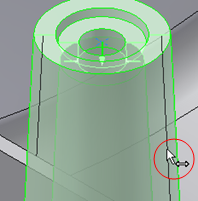
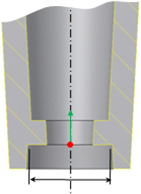
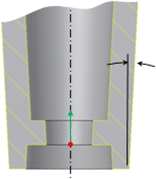
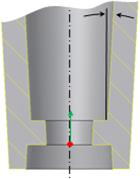
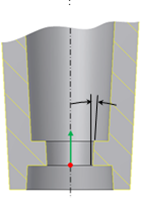
Use manipulators to set the dimensions of the Boss feature. When precise dimension input is not required, the manipulators are available on the preview to define the geometric parameters interactively.
During preview, the cross section of the Boss is shown in a plane normal to the camera axis. Pause the cursor over the cross section to highlight the segments that you can drag. Pause the cursor on key points to displays additional dots that you can drag. Some dots remain hidden to prevent excessive clutter in the preview.
There are two types of manipulators:
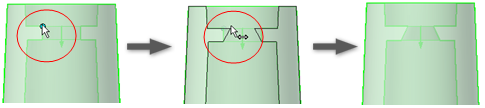
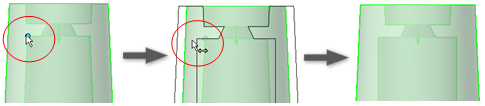
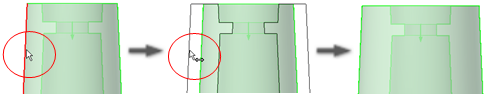
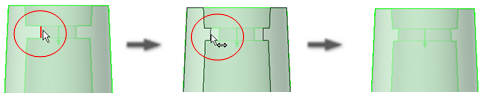
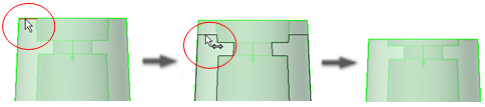
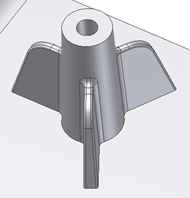
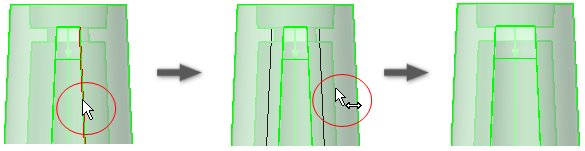
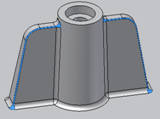
For stiffening ribs, use the manipulators to determine the dimensions interactively.
Front view:


Side view:
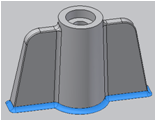
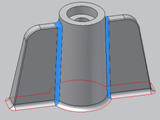
The Boss feature includes an option for defining constant radius fillets at three different locations, as shown in the following images:
Build a Boss feature (Head component) on a part using points of a 2D sketch
- Create or import a thin-walled part.
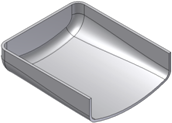
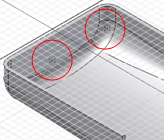
- Build a 2D sketch with a couple of points corresponding to the Boss placements.
- On the ribbon, click

 .
. - Verify that the Placement method is From Sketch and the Boss type is Head
 .
. - If this sketch is the only one with points, they are automatically selected. Otherwise, select the points for the placement (CTRL + click to cancel the selection). The closest part body in the direction of the sketch normal (both ways) is chosen as the target body. To select a different target, use the body selector on the main tab.
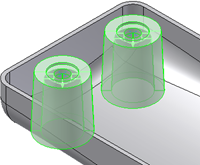
- Enter a value in the Offset From Sketch field to start the Boss above or below the sketch plane.
- Adjust the Boss head parameters or use the manipulators until the appropriate dimensions are reached.
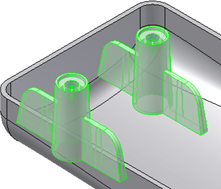
- Add two stiffening ribs. Verify that they are oriented as shown in the image. If necessary, enter a 90-degree angle depending on the sketch X axis orientation. Use the manipulators or the dialog box input fields to adjust the dimensions of the ribs.
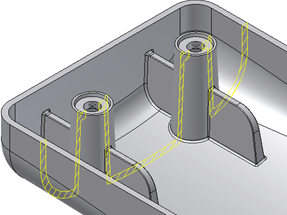
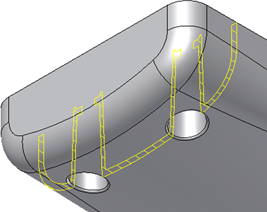
- Add fillets at the intersection boss-body, at the edges of the ribs, and at the ribs-boss intersection. Click OK to complete the mounting Boss.
Build a Boss feature (Thread component) on a part using On Point placement
The goal is to create a couple of thread bosses using one point from a sketch and one 3D work point. For example, the part has different boss heights.
- Create or import a thin-walled part. Place a Boss feature on the circular edge at a position that is not convenient for the “on sketch” positioning style. For example, choose a point on the edge where the hook direction is not likely to be aligned with a sketch X or Y axis.
- Build the construction elements. Create one sketch point and one 3D work feature where the bosses are needed.
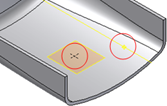
- On the ribbon, click .
- Verify that the Boss type is Thread
 and that Placement method is On Point.
 - Select the points defined in step 2 as the Centers. Select a vertical edge like the one in the image as the Direction.
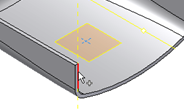
- When the direction is defined (it is the same for all the bosses in the same feature), the preview displays.
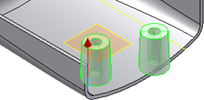
- Verify that the bosses can extend to the target body, for example, their projection is completely within the part body boundary.
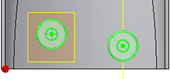
- Adjust the dimensions as necessary, and assign a fillet for the intersection boss-part body.
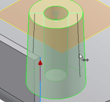
- Stiffening ribs are not necessary here. Click OK to complete the Boss.
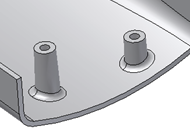
Creates a Boss feature using points of 2D sketches or 3D work points and direction elements.
| Type specification | ||
|---|---|---|
| | Head type. It is where the head of the fastener stays. | 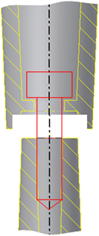 |
| | Thread type. It is where the thread of the fastener engages. | |
Click the name of the dialog box tab to display definitions of the options.
Common to both types. It holds the controls for the Boss placement.


Boss - Head tab (Head type, counterbore style)

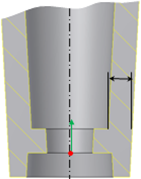
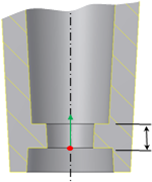
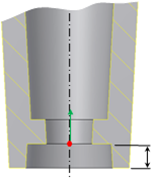
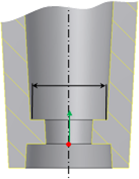
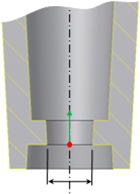
Boss - Head tab (Head type, countersink style)


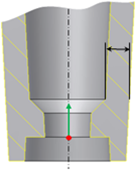
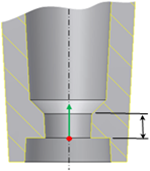
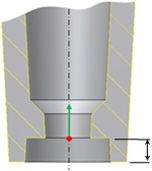
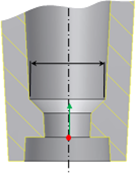
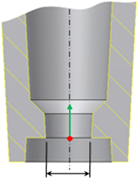
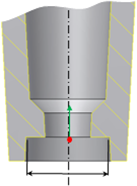
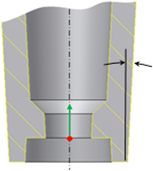
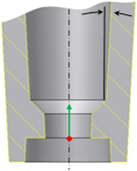
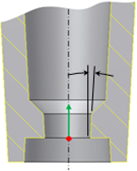
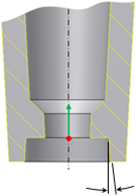
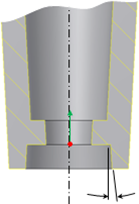
Boss - Thread tab (Thread type)
Specifies the thread boss parameters of the Boss feature.
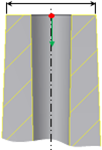 | Thread boss diameter |
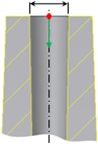 | Thread boss hole diameter |
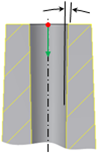 | Thread boss inner draft angle |
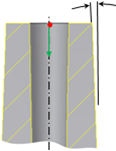 | Thread boss outer draft angle |
The thread boss offers three hole types (hole check mark on):
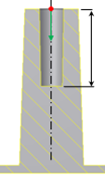
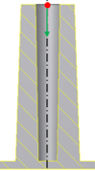
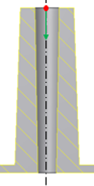
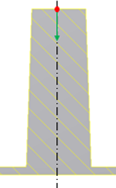
Stiffening ribs are optional. If the Stiffening Ribs check mark is on, all controls to input the Ribs parameters become active.
| Number of stiffening ribs indicates the number of ribs surrounding each Boss. | |
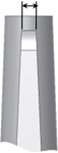 | Rib thickness |
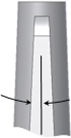 | Rib draft |
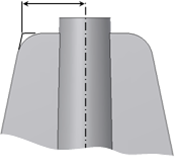 | Shoulder length |
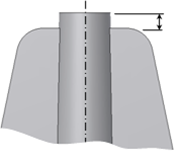 | Shoulder top offset |
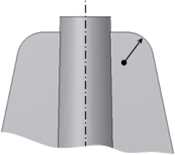 | Shoulder radius |
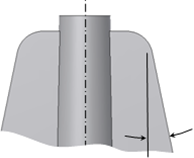 | Shoulder flare angle |
| Rib Fillet options | |
|---|---|
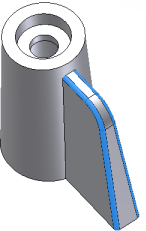 | Rib fillet radius on the edges of the rib. |
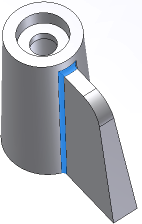 | Rib blend radius at the intersection between the ribs and the boss. |
