iPart Fundamentals

Most designers have parts that differ by size, material, or other variables, although the same design works in many models. You can create these designs as iParts, and then use one or more of the variations.
You use the iPart Author to create part families that contain a table. For standard iParts, each iPart variation is an iPart member, which is defined by a row in the table. When placing the part in an assembly, select the row (member) needed.
- Start with a new or existing part or sheet metal part.
- Determine the portion of your design that changes with each member.
- Use the Parameters command to rename parameters, establish equations, and create user parameters.
- Use the Create iPart command to define one or more table rows that represent members of the iPart factory, specifying variations of its parameters, properties, thread information, iMate information, feature suppressions, and work features.
- For sheet metal iParts variations of the Sheet Metal Rule, Sheet Metal Unfold rule and Flat Pattern orientation can be defined.
- Save the part, which is automatically saved as an iPart factory.
What is the workflow for iParts?
Working with iParts has two phases: part authoring and part placement.
In part authoring, you design the part and define all of its variations. You create a row in a table for each possible version. Each version, called a member, is stored in an iPart factory.
You can create two types of iPart factories: standard and custom.
In part placement, choose a row in the table to represent the appropriate version. An iPart member is generated, using the values in the table row, and inserted in your assembly like any other component.
What types of iParts can be defined?
There are two types of iParts:
- A Standard iPart Factory defines all values in columns. When you publish an iPart using a standard iPart factory, the member parts cannot be modified after placement.
- A Custom iPart Factory contains at least one column identified as a Custom Parameter Column. When you publish an iPart using a custom iPart factory, the custom parameters in the member parts can be modified when the iPart member is placed. You can add features to a custom iPart member.
What information can be included in an iPart?
- Parameters. Use the Parameters Editor to rename parameters, establish equations between parameters, and create User parameters.
- Properties, so that you can include information such as part number, stock number, and material. Your bill of materials and parts list are automatically kept up to date.
- Threads, including different thread families, designations, classes, direction, and pipe diameter.
- iMates, specifying which should be included or suppressed, offset values, matching names, and sequence number.
- Work features, including which should be included or excluded and visibility status.
- Feature Suppression status. Using feature suppression, you can include several configurations of a single part in one file. For example, one configuration of the part may have an extrusion with a cut, while another has an extrusion with a join. Sheet metal iParts can have feature suppression applied to features that were added to the flat pattern making individual flat patterns unique for iPart member files.
- iFeatures and table-driven iFeatures. You can specify which inserted iFeatures to include in the iPart. If the iFeature includes a table, you can specify the iFeature row value and the suppression status for each row.
- Sheet Metal iParts can include: the Sheet Metal Rule, the Sheet Metal Unfold rule and the Flat Pattern orientation.
Standard iPart factories generate parts that have fixed values. Because these parts are reused in many assemblies, we recommend that you store them in a library whose path is included in your active project file. This path is called a proxy path.
The library directory where you want to save the iParts must have the same name as the factory library, preceded with an underscore character. For example, if your factories are stored in a library named Bolts, you can define a library named _Bolts. Autodesk Inventor automatically stores all iParts generated by factories in the library _Bolts. You can define multiple proxy paths, and you can designate them in your project. This technique is helpful if, for example, you want to group table-driven components by category. Redundant paths are shown in red. You can delete these in the project file.
You are not required to specify a proxy path. When iPart members are placed in the assembly, Autodesk Inventor creates a subdirectory in the same directory that contains the iPart factory. For example, consider you have an iPart called Bolt.ipt in C:\temp. When you place an iPart member in the assembly, a subdirectory called Bolt is created (C:\temp\Bolt), and the iPart member file is created there.
Custom iPart members always are stored in a location specified using Browse in the Place Custom iPart dialog in assemblies.
How do standard and custom iParts differ?
When creating an iPart factory, you determine whether or not parameters can be modified when an iPart is placed in an assembly. Parts created from standard iPart factories cannot be modified. Parts created from custom iPart factories can have designated parameters modified when placed.
Standard iPart factories, such as bolt factories, are not edited. Because bolts are parts that do not change, you select the individual iPart member to use, but you do not edit any values. Usually, standard iPart members are stored in a library. By default, files for standard iPart members are located in a folder of the same name as the factory or in a location designated as the proxy path. For more information, see the section Where are iParts stored? in the Use iParts in assemblies topic.
If an iPart member is created already, successive placement of the iPart member in an assembly reuses the member file. If a key determines the selection criteria for an iPart member, meaning that the member is defined by fixed values from the factory table, then the iPart member is standard. It implies that there is a finite number of input combinations to create the iPart member. Examples are Nut, Bolt, and Washer.
Custom iPart factories are not edited directly, but you can choose the value for custom parameters when you place a member from the factory. For example, with an angle iron factory, you select the iPart to use, and then modify certain values such as length, width, or thickness. Only the values specified when the iPart factory was created can be modified. Custom iPart members are usually specific to a particular assembly and can be stored anywhere other parts are stored.
The location of files created for custom iPart members is based on the path specified using Browse in the Place Custom iPart dialog box. With custom iPart members, you can input a custom value not contained in the table. Custom iPart member columns appear with a blue background in the iPart factory. You can edit custom iPart members by adding additional features, sketches, and so on. It means that two custom iPart members produced with identical parameters can be different.
What is the behavior of work features in iParts?
Work features are useful in iParts to constrain parts in assemblies and to create pins in electrical parts.
Create work features in a part before you transform it into an iPart factory, and then determine which work features to include or exclude in iPart members.
In the iPart Author dialog box, work features have default Include or Exclude settings. You can override the setting by selecting work features to include or exclude in the iPart table. Each row can have work features Included or Excluded. Default settings are:
- Work features constrained with iMates are Included.
- Pins (work points) in electrical parts are Included.
- All other work features are Excluded, except the features constrained with iMates.
For standard iParts, each row in the iPart table represents a member. A column for each work feature indicates whether it is included or excluded. You can modify the setting for each row in the table.
Sheet Metal iPart Factory Considerations
Sheet metal iParts include additional attributes:
- specification of Sheet Metal Rule,
- specification of Sheet Metal Unfold Rule,
- optional specification of alternative, named flat pattern orientation,
- optional individual control of bend order sequence designation on flat pattern members captured using the factory Member Scope option.
Effectively taking advantage of these attributes requires additional consideration when the sheet metal iPart is to include the suppression of features which eliminate bends, thereby impacting the bend order sequence.
When a sheet metal iPart factory is created, a default bend order is created. The default bend order depends on whether a flat pattern body already exists within the sheet metal document.
- If no flat pattern exists when the part is transformed into an iPart factory, each member row’s flat pattern receives the exact same bend order (accounting for feature suppression) upon generation of the flat pattern.
- If a flat pattern exists when the part is transformed into an iPart factory, the existing bend order is copied to each resulting flat pattern member (accounting for feature suppression). This means that if a flat pattern has been customized with a specific bend order prior to transformation to an iPart factory, the default (factory scope) bend order for each member has customizations already in place. By utilizing the member scope option to edit individual flat patterns, each flat pattern can have a unique bend order defined.
Suppressed Features Within Members - In the case of factory scope editing, the default bend order behaves identically to that of a regular sheet metal component flat pattern, but it may appear to behave differently within the context of the iPart factory. The flat pattern automatically manages the bend order based upon the visible centerlines (modeled or cosmetic) for the active member. Centerlines which are absent for a given member (due to suppression) release their bend order number to maintain a gapless sequence order on the remaining features.
Tips for creating iPart factories
- Determine the part of your design that changes with each version.
- After you create the basic part, use the Parameters command to rename system parameters and to create unique parameter names. Then use the iPart Author command to create the iPart factory. Named parameters are automatically added to the iPart table.
- When creating an iPart factory, use Suppress and Unsuppress features to make significant changes between members. Add the features to the iPart table, and then specify the suppression status for the features in each row of the iPart table.
- In the iPart Author, right-click materials, sizes, or other critical values in the right pane and designate as keys. Only key values are shown in the model browser. Key numbers determine the nesting hierarchy, such as key 3 is nested under key 2, which is nested under key 1.
- Default document units are used if you do not specify a unit of measure in a table cell.
- If you select the Material property from the Design Assistant Properties list, use the Material Column option on the Other tab to ensure that the current appearance is set to As Material.
- To include part properties in drawings and bills of materials, include them in the iPart table, even if their values do not vary between members.
- To include part properties in drawings include them in the iPart table, even if their values do not vary between members.
- Place standard iPart factories in a library and include the library path in your project file.
Publishing from an iPart factory produces a DWF file containing an iPart table. Activate the iPart table in the browser, and then use 
 Save As Save Copy As. Specify the DWF file type and appropriate options.
A good candidate for an iPart factory is a basic part you use often in different sizes, materials, or mounting configurations. When you transform a part to an iPart factory, you define the parameters and properties that must change for each part.
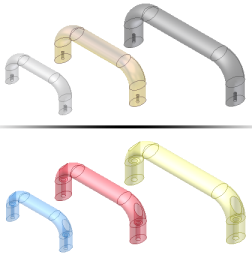
You can also create a table-driven iPart and use it to create a table-driven iFeature if the entire part is going to be used as an iFeature. Use the Extract iFeature command to save the iPart as an iFeature. Once the table-driven iFeature is saved to the catalog location, use the iFeature Author to make changes to the table.

In the iPart Author table, you define individual members of the iPart factory by specifying its values. If you prefer, you can add or edit members in an embedded Microsoft Excel spreadsheet. For standard iParts, each table row is a member of the iPart.
In previous versions, legacy iParts concatenated Key values to create a file name. Now, a Member column in the iPart table generates a default file name based on the factory name. Each member name is incremented. Optionally, click Options in the iPart Author dialog box to set up a different naming scheme, or enter a new name in the member cell.
You can create a standard iPart factory or a custom iPart factory.
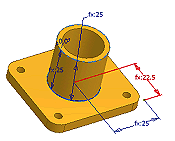

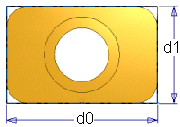 In this example, dimensions are shown as d0 and d1. You can create the parameters Length and Width as you add these dimensions or you can open the Parameter table and rename them to Length and Width.
- Click to open the iPart Author. All parameters renamed in the Parameters dialog box are already added as columns in the iPart table.
If you did not rename the parameters, add them to the table individually.
- In the left pane, the browser shows all part data. Click a parameter and then click the Include arrow to add the parameter to the table.
To remove a parameter, click the parameter in the right pane and then click the Remove arrow.
- Click tabs and add needed attributes. For example:
- On the Properties tab, expand the Project folder and add Part Number. In the iPart table, give each member a unique part number. When you place a version of the iPart, your bill of materials and parts lists are up to date.
- On the Suppression tab, add features whose suppression status you want to control.
- On the iFeatures tab, add inserted iFeatures you want to include in the table. You can specify the iFeature row value and suppression status for each row in the iPart table.
- On the iMates tab, iMates are automatically included if the feature status is Compute, but are not included if Suppressed.
- On the Work Features tab, include one or more work features, if desired. Work features may be useful when constraining parts in an assembly. For electrical parts, work features are included by default.
- On the Threads tab, include or exclude thread parameters, if present. Family is a crucial distinction among threads, so include it as a minimum.
- On the Sheet Metal tab, include: Sheet Metal style, Sheet Metal Unfold style and/or Flat Pattern Orientation as needed for your factory.
- On the Other tab, create values such as Color, Material, or File Name.
The Member Name column automatically generates unique names to distinguish each iPart member.
If you alter the member name from the default, it alters the file name.
- Review the columns in the iPart table to determine which columns to designate as Keys, such as material or size, by identifying primary characteristics of the iPart. NoteIf the iPart is going to be exported as an iFeature, you can designate the Key1 value to identify a specific characteristic of the iFeature in the browser of the part file it is used in.
In the right pane, right-click an attribute and select Key. Click the arrow and select the number to specify the order. For example, if you always select a part by its length, and then its width, designate length as Key1 and width as Key2.
- Right-click in the table and select Insert Row. Modify the values as needed to create an iPart member.
You can continue to add rows and columns as needed. Consider editing the table in a spreadsheet so you can take advantage of functions such as copy and paste, formulas, and sorting.
For more information, see the Edit the iPart spreadsheet section in Edit an iPart factory.
- Right-click a table row and select Set as Default Row. The default row is indicated by a green background. The Default Row is automatically inserted into an assembly when placed, unless a different iPart member is selected.
- Click OK to create the iPart. You can edit the iPart later to add or remove rows or adjust your preferences.
- Save the file.
- Create a standard iPart, using the instructions in the previous section.
- On one or more tabs in the iPart Author, determine the custom values to enter when the iPart is placed.
- If the value is not already in the iPart table, select it in the left pane, and then click the Include arrow to add it.
- In the iPart table, specify cells or columns in which to enter a custom value:
- Right-click in a column and select Custom Parameter Column.
- Right-click in any cell and select Custom Parameter Cell. Use this technique to create only one row that allows custom entry.
- Save the file.
Sheet metal parts can include features added to the flat pattern. When such a part becomes a custom iPart factory these flat pattern features cannot be:
- driven through the use of parameters
- suppressed
Custom iPart Example: Calculate custom parameters in Microsoft Excel
Setting a column to Custom means that you are able to set the value independently of the iPart table for that member.
You can use custom parameters to calculate values in the iPart table. Cells and columns calculated in Microsoft Excel have a red background when viewed in the iPart table.
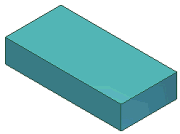 |  |
In the iPart factory, a column was added using the Description property. | Using a Microsoft Excel formula in the Description column, each iPart version was automatically calculated. |
Consider the iPart example shown previously:
- In the part file, use the Parameters command to add User Parameters for Width, Height, and Length.
- In the iPart Author, specify five columns:
- On the Parameters tab, select Width, Height, and Length.
- On the Properties tab, select Description and Part Number.
- Right-click the Length column and set it as Key1. When the iPart is placed in an assembly, only its length (Key1) is shown in the browser.
- Click OK to close the iPart Author dialog box and save the file.
- Right-click the table in the part browser and select Edit via Spreadsheet.
- In the spreadsheet, Width, Height, and Length are in columns A, B, and C. In cell D2 (the first data row) of the Description column, enter the formula:

This formula retrieves the values in columns A, B, and C and calculates results in the Description column. Using your values and units, the results look like the following formula:
- Save the spreadsheet.
After you have created member rows in the iPart factory, you can generate the files.
- In the browser, click to expand the factory. The member names are nested below the factory.
- Right-click a member name and select Generate Files to create the file on your computer. It is located in the same folder as the factory file.
- Continue to select members and generate files.
When creating an iPart factory, you select the parameters or properties to define the published iPart. In the iPart Author, each column contains a parameter or property. Each row represents a unique version of the part. To modify the iPart factory, edit in the iPart Author table or in an embedded Microsoft Excel spreadsheet.
Use Excel to incorporate spreadsheet formulas, conditional statements, and multiple sheet data extraction.
- Click Open.
- Browse to locate the iPart factory file, and then click Open.
- In the browser, click to expand the table folder. The default iPart member is marked with a check mark.
- Right-click the table icon and select Edit Table. The iPart Author dialog box opens.
- In the iPart Author table, change values as needed. You can also right-click and select:
- Insert Row to add another member of the iPart.
- Delete Row to remove a member of the iPart.
- Set as Default Row to insert this version in an assembly automatically when the iPart is placed.
- Custom Parameter Column to allow a value to be entered in all members when the iPart is placed.
- Custom Parameter Cell to allow a value to be entered only when this member of the iPart is placed.
- Delete Column to remove the parameter or property from all members of the iPart.
- Click OK to close the dialog box and then save the file.
Values calculated by equations in the spreadsheet are shown with a red background in the iPart table.
- Click Open.
- Browse to locate the iPart factory file, and then click Open.
- In the browser, click to expand the table folder. The default iPart member is marked with a check mark.
- Right-click the table icon and select Edit via Spreadsheet. The iPart table opens in Microsoft Excel.
- Edit cells as necessary, but do not change the column headings. Changed column headings causes all members of the iPart to fail to compute.
- Use Microsoft Excel tools, as needed. For example:
- Copy and paste rows to add new members of the iPart quickly. Change only needed cells to differentiate between iPart versions.
- Use formulas to create the data.
- Sort the data to organize it in a logical way, such as sorting on a critical value in ascending or descending order.
- Save the spreadsheet and close it.
- Test the new data by inserting members into an assembly file. If an information icon is displayed in the assembly browser, there are errors in the member. Re-open the spreadsheet and make corrections.
- Click Open.
- Browse to locate the iPart factory file, and then click Open.
- In the browser, right-click the table folder and select Delete.
- A message warns you that deleting the table converts the iPart to a normal part. Click OK to convert or click Cancel.
- Save the part.
Edit threads used in an iPart factory
Autodesk Inventor includes the Thread.xls spreadsheet in the Design Data folder. The Application Options and/or project settings can affect the file's location. The column headings match the labels on the Specification tab of the Thread feature dialog box. If you prefer, you can use the spreadsheet to create or edit thread parameters included in an iPart factory.
Edit Bend Order in an iPart factory
Use the Bend Order command within the Flat Pattern model state to redefine the bend order sequence using one of two automated techniques: directed or sequential as well as a completely manual bend order method. By default, Inventor sets the iPart capture mode set to ‘Factory Scope’ for every iPart factory that is created. This is expected to be the primary workflow. A single (default) bend order is assigned to all centerlines (modeled or cosmetic) that are available within any of the folded members. In this capture mode, any contextual bend order changes applied to a member file’s flat pattern is applied to all member flat patterns within the factory.
Only one method allows the assignment of an individualized bend order to a flat pattern member (verses the factory’s generic default order): setting the factory’s edit mode to ‘Member Scope’ (using the iPart/Assembly panel). Once a sheet metal iPart factory is set to ‘Member Scope’ any bend order changes made within the flat pattern is captured and persisted exclusively for the active member.
- Create a sheet metal part that you expect to use as an iPart factory.
- In the sheet metal part, create the Flat Pattern representation.
- On the ribbon, click .
- Create individual iPart rows representing the various members of your iPart factory.
- Once you have added all of the member rows, click OK to save the factory table.
- On the ribbon, click .
- On the Customize dialog box, select the Toolbars tab and select iPart/iAssembly from the list of Toolbars.
- Click Show on the Customize dialog box to display the iPart/iAssembly toolbar.
- Click Close to dismiss the Customize dialog box.
- In the part browser, click to expand the table folder. The default iPart member is marked with a check mark.
- Click Edit Member Scope under the Edit Factory Scope dropdown located on the iPart/iAssembly toolbar.
- Activate the iPart member for which a unique bend order is to be applied.
- In the flat pattern of the iPart member, apply the unique bend order sequence and click Finish Bend Order to save the bend order sequence.
- Repeat the above two steps for each member of the factory that require a unique bend order sequence.
The iPart Author transforms a part to an iPart factory. For standard iParts, each row in the factory table represents a unique member, whose variations are specified in columns. Data of several types is specified on tabs and added to the table as column in the order specified.
When table contents are complete, click OK to convert the part to an iPart factory. The contents of the table can be edited in an embedded spreadsheet.

Left pane | Shows part attributes, according to the selected tab. Click to select parameters, properties, or other values and then click the Add arrow to add to the selections list or the Remove arrow to remove it. |
Right pane | Shows selected values and adds a column in the iPart table. Specifies keys to represent the nesting order in the part browser and on the Key tab of the Place iPart dialog box. Only columns designated as keys are shown in the browser. Right-click an attribute and select Key such as material or size. In the iPart table, a key icon in column headings identify designated values. Select the Key order to set the nesting order. For example, if you select an iPart by its length, and then its width, set Length as Key1 and Width as Key2. |
iPart table | Contains columns in the order selected. Some cell or column settings can also be specified in the right pane. Member is automatically created as the first column. Its default value is the file name, indexed per member, such as bolt-01, bolt-02, and so on. For more information about Member Name and Part Number, click to see Options reference If you rename a member from the default file name, a prompt reminds you that a name change alters the file name and asks you to confirm. NoteThe Member column is the default file name column. If you remove the file name setting, the member file name is based on key names. Key names can result in long file names as all key names are concatenated in the file name. Rows represent individual iPart members. Right-click to specify:
|
Columns indicate the values that are unique for each iPart member. Right-click to specify:
| |
Buttons | Options opens the Options dialog box. You can create or edit part numbers and member names. For more information about Member Name and Part Number, click to see Naming Scheme. Verify checks the table for cell values that are not valid for the column type, improper column headers, and if numeric values have correct units. Cells with errors are highlighted with a yellow background. |
Creates or edits part numbers and member names for iAssemblies and iParts. Editing a member name alters the file name.
Specifies a range of values for selected cells or columns when using the iPart Author. When the iPart is placed, you can enter values within that range.
Access |  In the table, right-click a column, and then select Custom Parameter Column. Right-click again, and then select Specify Range for Column. |