Bolted Connection Component Generator

Use this calculation to design and check pre-tensed bolted connections loaded with axial or tangential force. The purpose of the design calculation is to select an appropriate bolted connection after specifying the required working load. The strength calculation performs a check of bolted connection (for example, pressure in the thread and bolt stress during joint tightening and operation).

You can create and design bolted connections, and then enter them directly into the assembly.

Use the bolted connection generator to:

  • Select and insert bolted connection with unlimited number of fasteners into assembly, selecting the fasteners from Content Center.
  • Insert bolted connection using user components.
  • Create only holes in your design, if needed.
  • Insert bolted connections to patterned holes.
  • Insert Bolted Connection into multiple sketched holes or centerpoints. Multiple sketched holes based on center points or center points must be part of the same sketch.
  • Insert bolted connections into extruded and revolved cuts.
  • Save bolted connection to templates library.

Use the Bolted Connection Generator perform following calculations:

  • Bolt diameter design to perform the calculation based on entered parameters such as load, material properties, and other factors.
  • Bolt number design to calculate correct number of bolts based on specifies load, geometric dimensions, and other factors
  • Bolt material design to calculate and select material suitable for specified criteria.
  • Strength check calculation of a bolt.
  • Fatigue calculations based on selected type of load (fluctuated or repeated, for example).
  • Fatigue calculations based on selected method (Modified Goodman Method or Gerber Parabolic Method, for example).

Bolted Connection Generator selects fasteners from Content Center.

NoteYou must be connected to Content Center server and Content Center must be configured on your computers to insert components using Bolted Connection Generator.

When designing bolted connection, use 3D grips in the graphics window to modify fasteners dimensions to speed up your design.

Bolted Connection Generator opens in the last inserted valid setting. To open Bolted Connection Generator in default installation settings, hold the CTRL key while opening bolted connection generator.

Limitations of bolted connection generator

  • Holes are drilled into parts, not into assembly holes. So, the bolted connection generator does not drill into holes created in the assembly environment, only into holes created in the part environment.
  • Holes cannot be drilled into faces created by assembly features.
  • You cannot insert a bolted connection into two instances of the same part using the bolted connection generator.
  • You cannot edit a bolted connection component that is suppressed.

Why I cannot design and insert bolted connection using bolted connection generator

There are several reasons why you cannot design and insert a bolted connection using the generator:

  • You are not connected to Content Center server and you do not have configured categories on your computer.

    Solution: Connect to Content Center and click the Configure Content Center Libraries command to configure libraries.

  • You are not connected to Content Center server and you do not have configured categories on your computer.

    Solution: Connect to Content Center and click the Configure Content Center Libraries command to configure libraries.

  • In the Design tab, you cannot specify bolted connection components because you did not specify the placement of bolted connection first.

    Solution: Use the options in the left side of the Design tab and specify the bolted connection placement.

  • An error message is displayed when you select a component. It means that the selected component does not have all parameters specified in Content Center.

    Solution: Edit and correct the parameters of the component in Content Center.

Procedures

Create Bolted Connections

Insert bolted connections

 
  1. On the ribbon, click Design tab Fasten panel Bolted Connection.
    NoteTo insert bolted connection using Bolted Connection Generator, your assembly must contain at least one component. (It is necessary to place the bolted connection).
  2. On the Design tab:
    • In the Type area, select the type of bolted connection. (If your assembly contains only one component, select Through All connection type.)
    • Select the type of placement from the Placement pull-down menu. Set Linear to specify placement by selecting two linear edges. Set Concentric to specify placement by selecting the circular edge. Set On point to specify placement by selecting a point. Set By hole to specify placement by selecting a hole.
    • Specify position of the bolted connection. According to your placement selection, you are prompted to specify start plane, edges or point or hole, and termination plane. Displayed options depend on your selected placement type.
      NoteIf you do not specify the bolted connection placement you are not able to select fasteners to the bolted connection. Bolted Connection Generator filters the fasteners selection based on placement specifications made on the left side of the Desig tab. When the placement specifications are not done, selection of fasteners on the right side of the Design tab is not enabled.

      If you insert a bolted connection to an assembly that contains two or more components and select Blind Connection type, in the Placement area you are prompted to select Blind Start plane (not termination plane) to specify where the blind hole starts

    • In the Thread area, specify the thread type from the Thread pull-down menu, and then select the Diameter dimension.
    • Begin populating the bolted connection. Follow the instructions on the right side of the Design tab. Click "Click to add a fastener" to connect to the Content Center where you select the component.

      Then, generator automatically offers you the next logical type of fastener for your bolted connection. For example, you are offered to add a washer after you selected a bolt. In the dialog box with displayed available components you can however change the category, and select a nut, for example. Also, you can filter displayed components by selecting a standard.

      NoteYou must connect to the Content Center server and Content Center must be configured on your computers to insert components using Bolted Connection Generator.
    • Continue populating the connection by selecting appropriate content.
 
  1. (Optional) Click More in the right lower corner of the Design tab to open the More Options area, where you can save your bolted connection to the templates library. Click Add and specify the template description.
  2. Select OK to insert bolted connection to the assembly.
NoteIf you select Apply, Bolted Connection Generator remains opened.

Insert bolted connections using linear placement option

Select linear type of placement to specify the bolted connection position by selecting two linear edges.

 
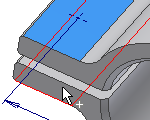
  1. On the ribbon, click Design tab Fasten panel Bolted Connection.
    NoteTo insert bolted connection using Bolted Connection Generator, your assembly must contain at least one component. (It is necessary for bolted connection placement).
  2. In the Type area of the Design tab, select the type of hole.
 
  1. Select Linear from the drop-down list in the Placement area of the Design tab.
  2. In the graphics window:
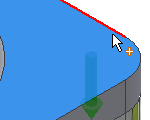
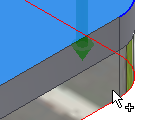
    • Select the start plane. After the selection, other buttons for placement are enabled (Linear edge 1, Linear edge 2, Termination).
    • Select first linear edge.
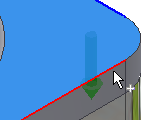
    • Select second linear edge.
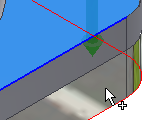
    • Select the termination plane.
 
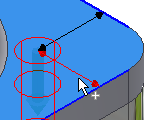
  1. In the graphics window, click the 3D grip to edit the distance of hole center from selected linear edges. Click the button to confirm the distance.
  2. In the Thread area, select the type and diameter of thread.
  3. Click the “Click to add a fastener” text in the right area of the Design tab and populate the bolted connection.
 
  1. (Optional) Click More in the right lower corner of the Design tab to open the More Options area, where you can save your bolted connection to the templates library. Click Add and specify the template description.
  2. Select OK to insert bolted connection to the assembly.
NoteIf you select Apply, Bolted Connection Generator remains opened.

Insert bolted connections using concentric placement option

Select the concentric type of placement to specify bolted connection placement by selecting the circular edge or edges. Hole for bolted connection placement is inserted into the center of circle defined by circular edge.

 
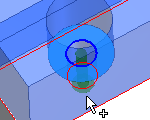
  1. On the ribbon, click Design tab Fasten panel Bolted Connection.
    NoteTo insert bolted connection using Bolted Connection Generator, your assembly must contain at least one component. (It is necessary for bolted connection placement).
  2. In the Type area of the Design tab, select the type of hole.
 
  1. Select Concentric from the drop-down list in the Placement area of the Design tab.
  2. In the graphics window:
    • Select the start plane. After the selection other options for placement are enabled (Circular reference, Termination).
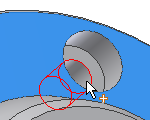
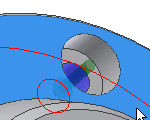
    • Select circular edge.
    • Select the termination plane.
  3. In the Thread area, select the type and diameter of thread.
  4. Click the “Click to add a fastener” text in the right area of the Design tab and populate the bolted connection..
 
  1. (Optional) Click More in the right lower corner of the Design tab to open the More Options area, where you can save your bolted connection to the templates library. Click Add and specify the template description.
  2. Select OK to insert bolted connection to the assembly.
NoteIf you select Apply, Bolted Connection Generator remains opened.

Insert bolted connections into patterned holes

When you create patterned holes using the Autodesk Inventor Hole command as multicenter point holes, you can insert bolted connection into such patterned holes using Bolted Connection Generator. The generator recognizes that your design contains the pattern and enables an option to insert bolted connection into patterned holes.

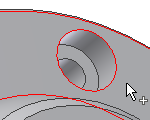
 
  1. Place hole feature in a part environment.
  2. Create the hole pattern in a part environment (not in an assembly).
  3. Return to the assembly from editing the part.
  4. Open the Bolted Connection Generator.
  5. In the Type area of the Design tab, select the type of hole.
 
  1. Select By hole from the drop-down list in the Placement area of the Design tab.
  2. In the graphics window:
    • Select the start plane.
    • Select the Existing hole. When your design contains a patterned hole, the Follow Pattern box is enabled.
    • Select the termination plane.
  3. In the Placement area of the Design Tab, check Follow Pattern box. A bolted connection is inserted in every patterned hole.
  4. In the Thread area, select the type and diameter of thread.
  5. Click the “Click to add a fastener” text in the right area of the Design tab and populate the bolted connection.
  6. Click OK.

When you insert bolted connection into pattern, you delete all bolted connections inserted into such pattern.

Insert bolted connections to sketched points

If your assembly contains point created in sketch environment you can insert bolted connection to such points.

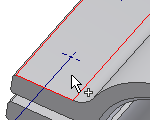
NoteYou cannot insert bolted connection into sketch points created in an assembly environment.
 
  1. Create points in sketch environment.
  2. Return to the assembly from editing the part.
  3. Open the Bolted Connection Generator.
  4. In the Type area of the Design tab, select the type of hole.
 
  1. Select On point from the drop-down list in the Placement area of the Design tab.
  2. In the graphics window:
    • Select the start plane.
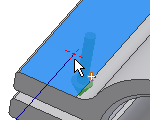
    • Select the point. When your design contains a sketched point, the Follow Pattern box is enabled. By default, bolted connections are inserted into every sketched point. To add or remove points, hold the Ctrl key + select the point.
    • Select the termination plane.
  3. In the Thread area, select the type and diameter of thread.
  4. Click the “Click to add a fastener” text in the right area of the Design tab and populate the bolted connection.
  5. Click OK.

During edit, you can also add or remove bolted connections from patterned points. In the assembly, right-click and select Edit Using Design Accelerator. On the Design tab, click Points. In the graphics window, click the point from which to remove the bolted connection. Hold the Ctrl key to remove more bolted connections from point at the same time

Bolted connections inserted using Bolted Connection generators are mated to selected points. When, within the sketch environment, you move the points, all inserted bolted connections are moved also.

Insert bolted connection onto extruded or revolved cuts

It is also possible to insert bolted connection into holes created using Extrude and Revolve commands in part environment.
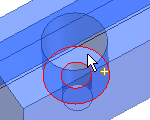
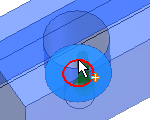
 
  1. Create holes using Revolve or Extrude commands in part environment.
  2. Return to the assembly from editing the part.
  3. Open the Bolted Connection Generator.
  4. In the Type area of the Design tab, select the type of hole.
 
  1. Select Concentric from the drop-down list in the Placement area of the Design tab.
  2. In the graphics window:
    • Select the start plane.
    • Select the circular edge. When your design contains a patterned hole, the Follow Pattern box is enabled. By default, bolted connections are inserted into every patterned hole.
    • Select the termination plane.
  3. In the Thread area, select the type and diameter of thread.
  4. Click the “Click to add a fastener” text in the right area of the Design tab and populate the bolted connection.
  5. Click OK.

How to populate bolted connections

Selection of fasteners to the bolted connection is done on the right side of the Design tab. When you open Bolted Connection generator and select the bolted connection placement, the right side area is prepared for fasteners selection. Based on your placement, bolted connection filters the Content Center and enables you to insert fasteners.

To start populating bolted connection, click “Click to add a fastener” text in the gray field on the right side in the Design tab. When you click the text, you are connected to Content Center. Available fasteners are displayed. You can specify the Standard and Category of a fastener to narrow the selection.

Bolted connection offers you to select fasteners in logical order - bolts first, then washers and nuts. To change the fastener, select other offered category. For example, you want to insert two washers so select washer in the Category menu when nuts are displayed.

“No more fasteners” text means that it is not logical to insert another fastener to the position.

To change the fasteners in the designed bolted connection, select the fastener and click .

Click to open the Table dialog box. Table dialog box offers a selection of other fasteners for selected category, if possible. You can select part with other material, for example.

NoteTable dialog box is not available for holes.
TipSelect bolt, hold the Alt key while opening the dialog box and Bolted Connection Component Generator dialog box opens. Change the bolt length there. This options as available for bolts only.

Insert bolted connections using custom fasteners

You can insert bolted connections using your own fasteners added to Content Center. You must author and publish your components first, and then you can insert them into the assembly using Bolted Connection Generator.

 
  1. Create or open en existing company part in the Part environment.
  2. Click Manage tab Author panel Component to author the part or iPart. To learn how to author iPart click here.
  3. Ensure that you have a Read/Write library created and added in your current project.
  4. Click Manage tab Content Center panel Publish Part to publish an iPart or part. To learn how to publish iPart click here.
  5. Open Bolted Connection Generator. Authored and published parts are available for selection.
  6. Specify bolted connection placement.
  7. Populate bolted connection
  8. Click OK.

The Bolted Connection displays parts according to filter - thread type and Bolt Diameter - for example "ISO Metric profile" and "6 mm". If your part does not correspond with this filter (does not have a member with 6-mm diameter), the part will not be displayed in the bolted connection.

Use sheet metal fasteners in bolted connections

Using bolted connection generator, you can insert sheet metal nuts only.

Specify placement of bolted connection using steps previously and begin populating bolted connection. Select a bolt.

To select a sheet metal nut, click Click to add a fastener text. In the dialog box, have All options selected in the Standard drop-down menu ,and Sheet Metal Nuts in the Category drop-down menu. Click to select a sheet metal nut. A nut is inserted into the Design tab of the Bolted Connection Generator.

Finish populating bolted connection and click OK.

To change the sheet metal nut in the designed bolted connection, select the nut and click .

Click to open the Table dialog box. The Table dialog box offers a selection of other nuts, if possible. You can select part with other material, for example.

Add bolted connections to Templates Library

You can save the bolted connections to Templates Library.

To display the Templates Library, on the Design tab, click More in the lower right corner.

Click Add to add the bolted connection to templates. Add command becomes available when complete geometry of bolted connection is specified.

Click Set to open the selected bolted connection template.

Click Delete to delete selected template.

In the Templates Description dialog box, set the template name, and click OK.

On Microsoft Windows XP, the bolted connection templates are saved to: Documents and Settings\%USERNAME%\Application Data\Autodesk\Inventor [ver]\DesignAccelerator\Templates.

Additional insertion of connection components

 
  1. Open the Autodesk Inventor assembly with the already inserted Design Accelerator bolted connection.
  2. Select the bolted connection, right-click to display the context menu and click the Edit Using Design Accelerator command.
  3. In the right side of the Design tab, add or delete components.
  4. Click OK to insert updated bolted connection.
NoteYou can add or delete any component from the bolted connection. When you delete a bolt, all fasteners are deleted also.

Calculate bolted connection

 
  1. On the ribbon, click Design tab Fasten panel Bolted Connection.
  2. In the Design tab, design your bolted connection (follow the instructions described in the first procedure previously).
  3. Switch to the Calculation tab.
  4. Use the drop-down list to select the type of strength calculation.
  5. Enter the calculation values. You can change the values and units directly in the edit fields.
 
  1. To perform fatigue calculation, click the Fatigue Calculation tab.
    NoteFatigue Calculation tab enables if you click the Enables/disables fatigue calculation command in the upper-right corner in the Calculation tab.
  2. Click Calculate to perform the calculation
  3. Calculation results are displayed in the Results area. The inputs that fail the calculation are displayed in red (their value does not correspond with other inserted values or calculation criteria). Reports of the calculation are displayed in the Summary of Messages area which is displayed after clicking the chevron in the right lower part of the Calculation tab.
  4. If calculation indicates design compliance, click OK.

Bolted Connection Tutorial

References

Bolted Connection Generator - Design Tab

All hole parameters (sizes, start/end plane, and so on) are specified in the Design tab.

NoteTo insert a bolted connection the using Bolted Connection Generator, your assembly must contain at least one component. (It is necessary to place the bolted connection).

Also, you must be connected to the Content Center where the fasteners for bolted connection are stored. If you are not connected to the Content Center, the area on the right side where you select the fasteners is grayed out.

See the Content Center Help, or Manage libraries across design workgroups Helpto learn how to use the Content Center.

Access:

Ribbon: Design tab Fasten panel Bolted Connection

Type

Select the type of Bolted Connection. Types of holes to select from:

  • Through All
  • Blind Connection
NoteWhen you select the Blind connection option, Termination is defined as the start plane of the blind hole (the opposite side of the last part than the Through All selection).
NoteInsert countersunk screws into countersunk holes.

Placement

Defines the placement of the bolted connection.

First, select start and termination planes. This sequence defines several bolted connection parameters:

  • Direction
  • Whole plates thickness
  • Number of holes

Options to specify the bolted connection position:

Linear

You specify the bolted connection placement by selecting the two linear edges.

Concentric

You specify the bolted connection placement by selecting a circular edge.

On Point

You specify the bolted connection placement by selecting a work point (mainly for non-hole features).

By Hole

You specify the bolted connection placement by selecting a hole (it locks bolted connection position, direction, and maximal diameter).

Based on the selected placement, the appropriate buttons for placement are enabled and you are prompted to specify the placement

for the hole.

Start Plane

Select a bolted connection start plane. Start plane also defines the direction of bolted connection.

Linear Edge 1

Select the first linear edge referenced for dimensioning the placement of the hole.

Linear Edge 2

Select the second linear edge for hole placement.

Circular Edge

Selected circular edge defines the circle, hole is drilled to the center of the circle.

Point (s)

Bolted connection is inserted into the selected work point. Recommended when you want to place the bolt to a non-circular hole.

Existing Hole

Bolted Connection point is calculated according to the center of the selected hole. At the same time, the maximum possible bolt diameter is restricted by the hole.

Follow Pattern

Available only when the By Hole placement option is selected and a hole in the pattern within the graphics window is selected. You can insert into an existing pattern.

Termination

Select an end face of the bolted connection. Start plane and Termination restrict the area where the necessary number of holes is calculated.

Thread

Specifies all thread parameters. Selects the thread type and the diameter of a thread. Threads are read from the Threads.xls spreadsheet.

Right side area

Displays the bolted connection components. Select “Click to add a fastener” to add components to the bolted connection.

NoteSpecify the placement of bolted connection first. Bolted Connection Generator filters the fasteners selection based on placement specifications made on the left side of the Desig tab. When the placement specifications are not done, selection of fasteners on the right side of the Design tab is not enabled.

When selection bolted connection fasteners you can narrow the selection. You can display fasteners according to Standard and Category.

Make sure that you have installed the appropriate libraries to Content Center. For example, you want to insert an ISO washer and you select the ISO Standard from the list but no fasteners are displayed you might have not loaded ISO library.

Also, a selected standard or category may not contain a fastener for particular selection.

Following fastener categories are available:

Bolts Square Head Bolts
Heax Head Bolts Countersunk Bolts
Hex Head - Flanged Bolts Washers
Socket Head Bolts Nuts
Round Head Bolts Sheet Metal Nuts
NoteNot all categories are displayed for all fasteners. For example, to insert bolted connection into already created hole using the By hole option, Bolted Connection Generator automatically offers you to select from countersunk bolts only.

Select the row with a fastener. Three options are available to edit the fastener:


For all fasteners: Displays the Table dialog box where you can select from other fastener, if available.

For bolts: Hold the Alt key to open the Modify length/hole dialog box where you can change bolt length

For holes: Displays the Modify length/hole dialog box where you can change hole parameters (type, designation, parameter, and so on).


Deletes the component.


Displays a dialog box where you can select from filtered Content Center items. You can filter the selection by specifying the standard or category. Based on your selection only the fasteners that meet the criteria are displayed.

NoteMake sure that you have the library installed in Content Center.

Templates Library

Displays the list of bolted connection templates.

To display the Templates Library, on the Design tab, click More in the lower right corner.

Each new bolted connection can be created from a template. When you open the Bolted Connection Generator, click Set to apply the template to the currently designed bolted connection.

Now, templates library remembers recently used template.

Set

Applies selected template to a current content of the bolted connection.

Add

Adds a newly designed bolted connection to the template library.


Note: Add command is available when the complete geometry of bolted connection is specified, including start plane, reference, and an end plane.

Delete

Deletes the selected bolted connection template.

Tips:

  • When you double-click a template, you can change the template description, if needed.
  • Using drag&drop method you can reorder templates within the library.

Summary of Messages

Displays the reports about calculation. To open the Summary of Messages area at the bottom of the Calculation and Design tabs, double-click the double line at the bottom of tabs or click the chevron at the bottom of the tabs. The Message area incorporates a summary for all calculations (state and fatigue).

Graphical Preview

A graphic preview represents the selected geometry and bolted connection components. The preview is a schematic representation of a fastener. The preview includes the visibility of counterbore/countersunk hole geometry and differentiates between socket head bolts and hex head bolts.

Preview displays in the graphics window when you select first fastener in the Design tab.
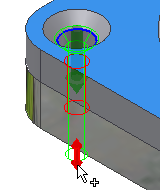
 

Use the 3D grips within the preview to edit bolt length. Drag the 3D grip to an appropriate length. Only lengths available for selected bolts are available. A tooltip is displayed showing the fastener dimension. Double-click the 3D grip to display the Modify dialog box where you can select the dimension from list of available dimension for particular fastener.

Toolbar commands

Bolted Connection Generator - Calculation tab

This tab extends the Design tab. You can calculate bolted connection data based on selections in the Design tab.

Access:

Ribbon: Design tab Fasten panel Bolted Connection and then click the Calculation tab.
NoteCalculation tab is not available if you disable the calculation solve by clicking the Enables/disables calculation command.

Type of Strength Calculation

Bolt Diameter Design

Calculates the bolt diameter with respect to the specified load, geometric dimensions of joint, material properties, safety coefficient, and other factors.

Bolt Number Design

Calculates the necessary number of bolts with respect to the specified load, geometric dimensions of the joint (including the specified bolt dimensions), material properties, safety coefficient, and other factors.

Bolt Material Design

Select this option if geometric dimensions and number of bolts are fixed by the design, and the loading capacity can only be affected by the change of material.

Check Calculation

Performs the strength check of a bolt during tightening and during operation, and checks allowable pressure in threads. This option is set as default option.

Loads

Max. Axial Force

Specifies the value of maximum operating force. A schematic picture of the bolted connection shows the direction of force action.

Max. Tangent Force

Specifies the maximum operation tangent force. A schematic picture of the bolted connection shows the direction of force action.

Tightness Factor

Specifies a value that varies within the range of Y = (1.2 to 2.2). Its meaning can be understood from the prestress joint diagram. If no specific joint tightness is required, its minimum value is used Y = 1). Dynamic loading (for example, connecting rod bolts) requires higher values.

Force Input Factor

The button next to the edit field displays a help table so you can select one of the four options of force input factor values.

Joint Friction Factor

Specifies the friction coefficient between the materials to connect.

Required Safety Factor

The value is selected according to the required safety level of the joint.

Plates Material

Select the spring material and its properties. Click to open the Material Database where you can select the appropriate material

WarningStrength parameters of material are determined empirically and reflect minimum values applicable for a group of materials. Although these values are close to the values obtained using measurement of particular materials, we recommend in cases of final calculations to use the parameters of material according to the material sheet or specifications of the producer.

Material

Specify material or select it from Material Database.


If a material is selected from the Material Database, its values are inserted automatically into the following edit fields, and the edit fields are locked. To unlock the fields clear the box.

Joint Properties

Functional Width

Width of the connected materials used in the calculation.

Bolt

Specifies or calculates the number of bolts in the bolted connection, their dimensions, material and properties (Thread Diameter, Pitch, Mean Bolt Diameter, Min. Bolt Diameter)

Bolt Material

Yield Strength

Specifies the yield strength of the bolt/bolts.

Allowable Thread Pressure

Maximal Allowable tread pressure - the value that you enter is compared with value of pc (Thread Pressure) - this is the calculated value and it is calculated according to a following formula: pa = 4 * F max / p (d^2 - d1^2)(0.8 d / p).

See the Engineer's Handbook for a table with allowable thread pressure values according to the ISO standard.

Thread Friction Factor

Presents values of the friction coefficient in the thread between the nut and bolt in the table.

Head Friction Factor

Displays friction coefficients in the contact surface between the nut/bolt head and connected material in the table.

(More)

Displays additional options for bolted connection design. To display the More Options area, click More in the right lower corner of the Calculation Tab.

If the boxes are checked, the diameter values are automatically inserted by the calculation. To change the values, clear the boxes.

Results

To display the Results area on the right side of the Calculation and Design tabs, double-click the double line on the right or click the chevron.

Displays the calculated values such as Prestress Force or Thread Pressure. Click Calculate to display the values.

NoteThe Results area displays appropriate results to calculate to get the proper dimensions of the bolted connection.

For information about used formulas for bolted connection calculation, see Engineer's Handbook.

Following output parameters are displayed in the Results pane:

  • Thread Parameter (d)
  • Thread Pitch (p)
  • Mean Bolt Diameter (ds)
  • Minimum Bolt Diameter (dmin)
  • Calculated Minimum Tread Diameter (dc)
  • Prestress Force (Fv)
  • Working Force (Fmax)
  • Required Tightening Moment (Mu)
  • Bolt Number (z)
  • Tensile Stress (st)
  • Torsions Stress (tk)
  • Reduced Stress (sred)
  • Stress from Maximum Force (smax)
  • Thread Pressure (pc)

Summary of Messages

Displays the reports about calculation. To open the Summary of Messages area at the bottom of the Calculation and Design tabs, double-click the double line at the bottom of tabs or click the chevron at the bottom of the tabs. The Message area incorporates a summary for all calculations (state and fatigue).

Toolbar commands

Bolted Connection Generator - Fatigue Calculation tab

This tab extends the Design tab. You can calculate bolted connection data based on selections in the Design tab.

Access:

Ribbon: Design tab Fasten panel Bolted Connection and then click the Fatigue Calculation tab.
NoteThe Fatigue Calculation tab is not available if you disable the fatigue calculation solve. Click the Enables/disables fatigue calculation command in the upper-right corner of the Calculation tab.

Loads

Select the type of loading.

Calculation Parameters

This area displays calculated forces and stresses in the bolt and pressure in the nut thread.

Dynamic Stroke Factor

It is necessary to include the Dynamic Stroke Factor in the calculation if strokes actuate on the joint. In this case the Dynamic Stroke Factor is used. The button located beside the edit field opens a Recommended value of dynamic stroke factor dialog box, where you can select a coefficient value.

Life of a Joint in Thousands Deflections

Select one of the preset values.

Required Safety Degree

Required Safety Degree of the bolted connection during fatigue loading is the ratio of fatigue strength and the calculated stress of the bolted connection. The dialog box enables its selection. It is displayed after you click the button beside the edit field.

Strength Ratios

See the Bolted Connection Endurance Limit Determination chapter in the Engineer's Handbook for used calculation.

Fatigue Strength Calculation method

Use the pull-down menu to select a method that defines the fatigue curve for determining of the fatigue strength of the bolted connection. The used fatigue curve is displayed in this area.

Factor of Haigh diagram Narrowing

Depends on the joint material (recommended values) for traction and bending Y <0.15...0.3>.

Endurance Limit Calculation Parameters

Basic Endurance Limit Material

Basic endurance limit of a test bar from the selected material. This value is automatically inserted by the calculation. To change the value manually, clear the box.

Modifying Factor of Stress Concentration

Modified factor of stress concentration is determined from the ke = 1/K formula, where the fatigue-strength reduction factor K depends on the bolted connection type, shape, design, bolted connection quality, and the bolted connection loading.

Miscellaneous-effects Factor

All other effects that can reduce or increase the fatigue strength of bolted connection (for example, the influence of corrosion) are included in this coefficient.

Results

To display the Results area on the right side of the Calculation and Design tabs, double-click the double line on the right or click the chevron.

Displays calculated forces and stresses in the bolt and pressure in the nut thread. Click Calculate to display the values

NoteThe Results area displays appropriate results to calculate to get all proper dimensions of bolted connection.

For information about formulas for the bolted connection calculation, see Engineer's Handbook

.

Following output parameters are displayed in the Results pane:

  • Corrected Endurance Limit (se)
  • Virtual Mean Stress (Se / Y) (sF)
  • Mean Fatigue Strength of the Joint (sM)
  • Amplitude of Joint Fatigue Joint Stress (sA)
  • Mean Cycle Stress of the Joint (sm)
  • Cycle Stress Amplitude (sa)
  • Calculated Safety Degree (nc)

Summary of Messages

Displays the reports about calculation. To open the Summary of Messages area at the bottom of the Calculation and Design tabs, double-click the double line at the bottom of tabs or click the chevron at the bottom of the tabs. The Message area incorporates a summary for all calculations (state and fatigue).

Toolbar commands

Template Description

Sets description of a template.

Access:

Ribbon: Design tab Fasten panel Bolted Connection and on the Design tab, in More Options, clickAdd.
NoteAdd command is available when complete geometry of bolted connection is specified (start plane, reference, and an end plane).

Any new bolted connection can be used as a template. Save it to the Templates Library on the hard drive, and the next time you create a new bolted connection, the new template is available.

The name of template must be unique. If you try to save the template and the name exists, you are prompted to set a different name.

OK

Confirms the template settings and closes the dialog box.

Cancel

Closes the dialog box.

Factors

Access:

Ribbon: Design tab Fasten panel Bolted Connection and then click the Calculation tab.

Tightness Factor

With a prestressed bolted connection, the distance between materials is undesirable (due to the bad quality of surface, for example) and this safety factor is introduced to prevent it. Tightness factor k = 1 + Y (Additional tightness factor Y = 0.5 - 1.5). Recommended values for bigger bolt diameters are 1.5. Values for smaller bolt diameters are 2.5. To ignore it, set the value to 1.

Force Input Factor

This factor is used in the calculation of the prestressed force. It takes into account the position of the working load in the connected materials. To ignore force input factor, use a value of 1.

Joint FrictionFactor

This factor is used in calculation of the working force. The size of friction force between various connected materials is taken into the account.

Thread Friction Factor, Head Friction Factor

These factors are used in the calculation of the required tightening moment. The friction force dependent on the thread material, nut/bolt material, and the connecting material is taken into account.

Table

The Table dialog box displays list of available fasteners for bolted connection insertion for specified parameters (thread diameter, standard, category, placement).

Access:

Ribbon: Design tab Fasten panel Bolted Connection and then click the Design tab. In the area on the right side, specify fastener, select it and click .

There are parts in your database meets the specified parameters but that vary in material, thread description, or size designation or example. These fasteners enable a fastener to be selected with specified parameters. Click a row to select a fastener. Click OK and your selection is inserted into the Design tab of bolted connection generator.

When there is only one fastener displayed, there is only one fastener within your database that meets the specified criteria (placement, thread type, diameter, Standard, Category). To select another fastener from Content Center, click in the Design tab.

Only columns where data for fasteners vary are displayed.

You cannot edit any fastener data in this dialog box. Edit the fasteners using the Content Center editor.

WarningBolted Connection Generator does not know the condition or reason why you selected a fastener. In the Table dialog box, you might select a bolt because it has a specific material. When you change a diameter value, the generator automatically selects a bolt that meets this new criteria but does not reflect the earlier change you made in the Table dialog box. To select a fastener with a specific material, select the fastener in the Table dialog box again.

Modify length/hole

Specifies hole and bolt parameters that you can change.

For bolts, you can change the length only.

For holes, you can change type, diameter, designation, and class.

Access:

Ribbon: Design tab Fasten panel Bolted Connection and then click the Design tab. In the area on the right side, specify fasteners. Select the row with hole and click .

For bolts, select bolt and hold the Alt key + to open Modify length dialog box.

The dialog box differs depending on whether the selected component is a bolt or a hole.

Modify Hole

Type

You have several options to select the type of hole. Depending on the selected option, the hole is adjusted. For example, if you select the Loose option and click OK, you can see that the hole dimensions are changed in the Design tab.


Threaded - Hole Diameter is always driven. It designs the threaded hole type.

Designation

For some holes, there are more possible dimensions for the bolt type. Specify the hole more accurately by selecting the appropriate designation.

Modify Bolt

Custom Length

Check the box to select the bolt length from the drop-down list. Values in the list depend on the type of the selected bolt.

When you enter a user parameter and return to the Design tab of the Bolted connection Generator, the part item with user dimensions is displayed with a green background.


You can also change the length of bolt in the graphics window using the 3D grip. Drag the grip to the appropriate length. The edit field of the part is displayed with a green background in the Design tab.

Double-click the 3D grip to edit the bolt length.


Confirms the input from the component.


Closes the dialog box.

Design tab