Balloons
After you create a drawing view, you can add balloons to the parts and subassemblies in that view. A balloon is an annotation tag that identifies an item listed in a parts list. The number in the balloon corresponds with the number of the part in the parts list.
The following image shows various balloon types.
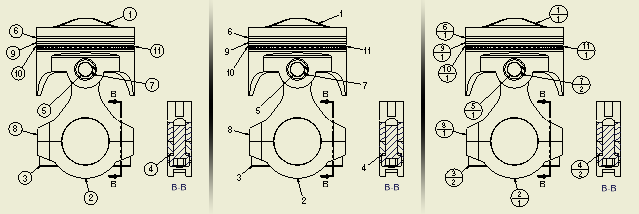
You can define a default format for balloons. Use the Style and Standard Editor dialog box to set the balloon style.
If you prefer a different style for a specific balloon, you can modify the style definition after you place the balloon in the drawing. The modified style is saved in the current document only. To override the style library balloon definition with the new one, right-click the balloon style type in the Style and Standard Editor, and then select Save to Styles Library.
You can modify the settings for a balloon after you place it in the drawing. Right-click the balloon, and then perform the following operations:
- Change the balloon style.
- Change the balloon type and contents.
- Attach another balloon.
- Change the arrowhead or add a vertex or leader.
A balloon formatted with the standard-defined balloon style can be updated by changing the active Object Default style in the Style and Standard Editor dialog box. All balloons using the By Standard style are updated with changes made to the active Object Default style.
You can modify the contents and shape of existing balloons. Edit the balloon to override the balloon shape, or to edit or override the value displayed in the balloon.
- All edits in parts lists associated with the same source as a balloon are reflected in the corresponding balloon (until you create an override for the balloon value). Also all edits in balloons are reflected in related parts lists.
- Changes made in the Override column in the Edit Balloon dialog box are not reflected in the parts list.
Creating a balloon for a custom or virtual part
If you have a virtual part defined in the assembly, or a custom part defined in the parts list, you can create a balloon for it. The balloon can be attached either to a part in the drawing or to an existing balloon.
Aligning multiple balloons horizontally or vertically
You can select multiple balloons in your drawing to align them at the same time. The first balloon you select is the anchor for the alignment of the other balloons.
Horizontally aligned balloons are aligned along the Y axis, and the X axis position does not change. Vertically aligned balloons are aligned along the X axis, and the Y axis position does not change.
You can also set the distance between balloons. Using the horizontal and vertical offset options, the Offset Spacing value of the associated balloon style is used.
If you set the Offset Spacing value to zero, there is no offset, and the balloons are aligned tangent to one another. If the multiplier is any value other than zero, the value sets the distance between the balloons.
Moving and placing multiple balloons and leaders
You can drag them to a new location. If Autodesk Inventor detects a mix of leader types with the balloons (such as multiple and single vertex types), all leaders are "rubberbanded" from the arrowhead as if they are single vertex leaders.
To place multiple balloons, select a view or preselect components in a view.
Add balloons to a drawing view
If you create a parts list before adding balloons, the balloons use properties specified by the parts list. If the view does not have an associated parts list, the BOM Properties dialog box opens so you can set the properties.
The following image shows how balloons update per changes to balloon properties.
Add balloons to individual parts
 Show Me how to add balloons to individual parts
If a parts list is not created in the drawing or for a selection, the BOM Properties dialog appears. You can specify the BOM view during the balloon command. The balloon command continues only after properties are specified.
Use the following procedure to create balloons before a parts list:
Automatically add balloons to multiple parts
Use Auto Balloon to create multiple item balloons for selected components in drawing views.

Attach a balloon for another part to an existing balloon
- Right-click an existing balloon, and select Attach Balloon from the menu.
- Select a part in the view to specify the balloon to attach.
- The new balloon is automatically attached to the existing balloon.
- Right-click a balloon in the drawing and select Attach Balloon From List.
- In the Attach Balloon dialog box, click the arrow on the Filter list and select the parts to display in the list.
- In the table, select parts for which you want to create and attach a balloon.
If appropriate, right-click in the table and choose an option: Select All, Clear All, or Invert Selection (to select all unselected parts or clear the selection of all selected parts).
- When parts are selected, click OK. Balloons are attached automatically.
Create a balloon for a custom or virtual part
If you have a virtual part in the assembly, or a custom part defined in the parts list, you can create a balloon for it. The balloon can be attached either to a part in the drawing or to an existing balloon.
The default format for balloons is defined by the Object Default Style in the active drafting standard. After placing a balloon, you can change its shape, value, arrowhead, and style.
You can override balloon style settings, but the edits are saved in the current document only. To change balloon formatting, change the balloon style and save the changes to the style library.
- Select a balloon.
- Right-click, and then select Edit Balloon.
- In the Edit Balloon dialog box, select the Override Shape (by Style) check box.
- Select a different balloon type from the standard balloons or click the arrow to select from the list of sketched symbols.
Change the value displayed in a balloon
The default value in a balloon is the item number for the part in the parts list.
- Select a balloon.
- Right-click, and then select Edit Balloon.
- In the Edit Balloon dialog box, click in the Item cell to change both the balloon and the parts list, or the Override cell to change only the balloon.
- Enter the desired value.
- Right-click the balloon, and then select Edit Arrowhead from the menu.
- In the Change Arrowhead box, click the arrow, select the arrowhead style from the list, and then click the green check mark to apply it.
Right-click the balloon, and then select Delete from the menu. Continue to select balloons to delete as necessary.
To Delete a balloon from a multi-item balloon, right click the balloon and choose Remove.
You can click Undo to recover deleted balloons in reverse order.
Add a vertex to the leader line
- Right-click the balloon, and then select Add Vertex/Leader from the menu.
- Click the leader line to add a vertex.
- Drag the vertex to change the length and placement of the leader line segments.
Align balloons in a drawing view
- In the graphics window, click the Ctrl key, and then click to select the balloons to align.
- Right-click and select Align. Select the desired alignment option.
Vertical aligns the balloons vertically without changing the distance between them.
Horizontal aligns the balloons horizontally without changing the distance between them.
Vertical Offset aligns the balloons vertically and spaces them equally.
Horizontal Offset aligns the balloons horizontally and spaces them equally.
Add custom properties to balloons
Balloon shapes display the following number of custom properties:


In this module, you add a custom property to a hexagonal balloon.
 On the ribbon, click
  , and double-click default balloon to view the current balloon style.
- Click the drop-down arrow, and select Active Standard to activate the default.
- Click the Shape icon.
 Select the Hexagon shape
 Click the Property Chooser, and select and move the File Name property to the Selected Properties column.
 - Highlight the File Name property, and move it to the top of the list.
 Place a new balloon.
You now have the custom property File Name in a hexagonal balloon.
The Property Display field shows the order the balloon properties for each selected shape is presented.
Changes the balloon type or overrides the values for the selected balloon.
Access: | Select a balloon, right-click, and then select Edit Balloon. |
Creates one or more item balloons used to identify components in drawing views.
The choice of BOM View determines available settings and properties.
Provides style overrides for balloon shapes during creation. Sketch symbols are available when sketch symbols exist in the active documents drawing resources. Select the check box to replace the style-defined balloon shape with a different shape. Click the appropriate balloon shape. Clear the check box to use the default balloon style shape.
Attach Balloon, Custom/Virtual Parts
Use the Attach Balloon dialog box to select parts to be ballooned and the balloons attached to an existing balloon.
Use the Custom/Virtual Parts dialog box to select custom/virtual parts to be ballooned.