Frame Analysis overview
Use Frame Analysis to understand the structural integrity of a given frame with respect to deformations and stresses, when subjected to various loading and constraints. Once you define the criteria, you can run the simulation and view the behavior relative to the conditions you defined. Simulations help you identify performance issues and find better design alternatives.
Beam elements are linear. Frame analysis does not support curved beams. So the curved beams must be split into small linear pieces.
Each beam element has six degrees of freedom at the beam start and beam end (three rotational and three degrees of freedom of displacement). Nodes on beams define somehow important points on the structure. They can be used to define forces, for example. In modal analysis, nodes can concentrate masses.
The following key functionality is available in Frame Analysis:
- Structural static and modal analysis of one or more simulation studies.
- Automatic adaptive features for controlling accuracy of results.
- Large selection of boundary conditions (loads and constraints).
- Extensive post-processing functionality for 3D viewing of the results, and publishing Web reports.
The Frame Analysis interface is divided into two main areas: the Frame Analysis browser, and the graphics region. These areas display content associated with the active simulation. Inactive simulations have a gray background.
Displays the simulations with assembly and simulation parameters in a hierarchical view with nested levels of feature and attribute information. You can:
- Copy whole simulations.
- Right-click a node for context menu options.
- Expand the folders, select the nodes, and see the selection cross-highlight in the graphics region.
Displays the model geometry and simulation results.
- Updates to show status of the simulation.
- Includes view manipulation tools.
From a high-level perspective, a typical frame analysis workflow looks like the following:
- Set expectations: Estimate physical behavior using a conceptual model.
- Pre-processing: Enter physics into the model and define analyses to perform.
- Solving: Solve the mathematical model.
- Post-processing: Display and evaluate the results.
- Review expectations: Compare the results with the initial expectations.
- Conclusion (Improve Inputs): Do the results match the expectations?
- If the answer is NO, you review and modify the inputs to improve the results. The modifications could include, but are not limited to: suppressing unwanted beams, changing the loads or constraints, changing the analysis type, and so on. There are many avenues you can explore to refine the analysis results to bring them in line with expectations. The point is, the refinement is a highly iterative process.
- If the answer is YES, your analysis work is concluded. A likely result is that your design is refined and improved.
Inventor Frame Analysis workflow
When you start Frame Analysis, the Frame Generator assembly model is automatically converted to beams and nodes. The information that is read from the source model include:
- Beam section data
- Beam materials
- References of boundary condition are validated
- Start and end points of beams are joined within specified degree of tolerance
- Report displays the insufficient materials, or improper cross-sections properties
The following is an example of a typical workflow for analyzing a frame structure using Inventor Frame Analysis. The steps are not exhaustive, and they do not represent the only steps you can use in your analysis.
In this numbered list, the following applies:
- Steps 1 through 9 are pre-processing.
- Step 10 is the solving step.
- Step 11 is the post-processing step.
- Steps 12 through 15 are steps for improving inputs.
- Open an assembly which contains frame components created using Frame Generator tools.
- Enter the Frame Analysis environment.
- Click Create Simulation.
- Specify the simulation properties. The beam model is automatically converted into idealized nodes and beams to conduct structural analysis. The graphics window displays beams, nodes, and the gravity glyph. The Status folder in the browser displays the insufficient beam materials and cross-sections.
- Exclude beams and boundary conditions you do not want in the simulation.
- Specify material and physical properties for beams participating in the analysis.
- Specify and apply the constraints.
- Specify location and magnitude for loads.
- Evaluate the connections and specify, as needed.
- Run the simulation.
- View the Results.
- Make necessary changes to refine the assembly. Changes can include adding nodes, loads, and constraints or suppressing problematic ones.
- Rerun the simulation to update the results.
- Repeat the process until you optimize the component.
- When ready, create reports based on the results.
The Frame Analysis settings are applicable on a per document basis. These settings define the defaults for all simulations. If you change the settings while working in a simulation, the simulation is affected immediately.
Specify values in Frame Analysis
When you define loads and constraints in Frame Analysis, you can use Heads Up Display (HUD) and grips to define the inputs. Or, you can set values in the appropriate dialog boxes.
When you select Use HUD in Application option in the General tab of the Frame Analysis Settings dialog box, Heads Up Display is used as default method during edit. You can still display dialog boxes, however. Select the appropriate command in the ribbon, right-click in the graphics window and select More Options.
Warning messages are listed in the Status folder in the Frame Analysis browser. When you create a simulation and assembly frame model is automatically converted to beams and nodes, the messages about insufficient beam materials and cross-sections display. When you run a simulation, all messages about simulation display. Sometimes the data are critical and simulation fails when you run the Simulation. Then, the separate dialog box displays as well. Warning messages display with  icon. Error messages display with
  icon.
icon.
Error message indicates that the simulation cannot proceed without modification. For example, the simulation can fail if you have an insufficient material assigned to a beam.
This error message prevents the simulation from continuing without modification. In this case, change beam material. Click the Material command on the Beams panel and select the material in the Beam Material dialog box. Or, change the material in the source model directly, and click the Update command in the Beams panel to recompute the beam model.
Right-click and select How To… to open a Help page with a list of warnings and errors that can occur when you run simulations, and suggestions on resolving them.
How to analyze frames using Frame Analysis
- Use the Frame Analysis environment to perform basic analysis of frame structures. Also use it to define boundary conditions (constraints and loads) and various connections between the nodes and beams (releases, rigid links).
- Open an assembly that contains frame structures inserted using Content Center.
- On the ribbon, click

 . The assembly is automatically simplified to a beam calculation model. The graphics window displays beams, nodes, and the gravity glyph. The Status folder displays the insufficient beam materials and cross-sections.
 - Click
 . In the Create New Simulation, set the simulation properties, and click OK. An assembly can keep multiple simulations with different properties.
 - Beam Properties are based on the assembly data, but you can customize them for the simulation. On the ribbon, click
 . Check the Customize box, enter the desired values and click OK. List of sections with overridden beam section properties is displayed in the Sections folder in the browser.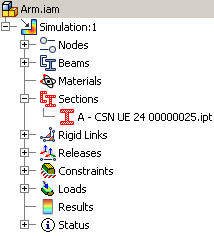
- Beam Material can be customized as well, to fine-tune the material values. To change the material, on the ribbon, click
 . Check the Customize box, use the drop-down list to select a desired material, and click OK. List of materials with overridden materials is displayed in the Materials folder in the browser.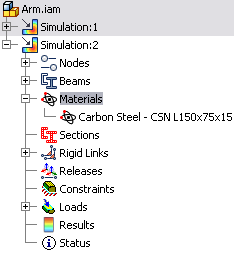
- All constraints and loads use Heads Up Display and grips to define the inputs easily. More complex settings are available in the dialog boxes. (To display the particular dialog box, right-click the graphics window after you execute the command from the ribbon, and select More Options.) To avoid unnecessary usage of complex constraints and loads, typical simplified cases use appropriate simplified commands.
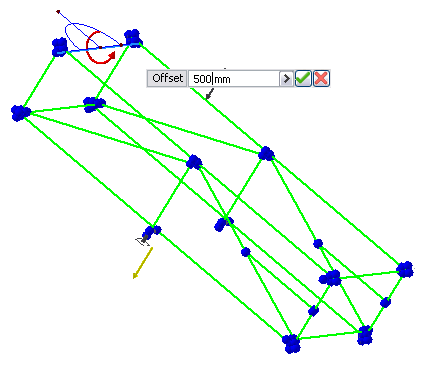
- Specify constraints. Select beam or node to specify their origin. Use glyphs or dialog boxes to specify the origin and values such as Magnitude or Angle in Plane.
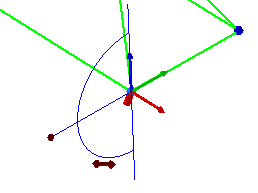
- A similar interactive approach is used to define the loads. The HUD always corresponds to the currently selected grip. Enter an exact value of the given parameter directly. Define Offset using absolute or relative values.

- When the loads and constrains are defined, click
 Simulate to generate accurate results. By default, the simulation scene displays the displacement values.
 - The Results incorporate different kinds of output properties. Selection of a browser node displays the appropriate results.
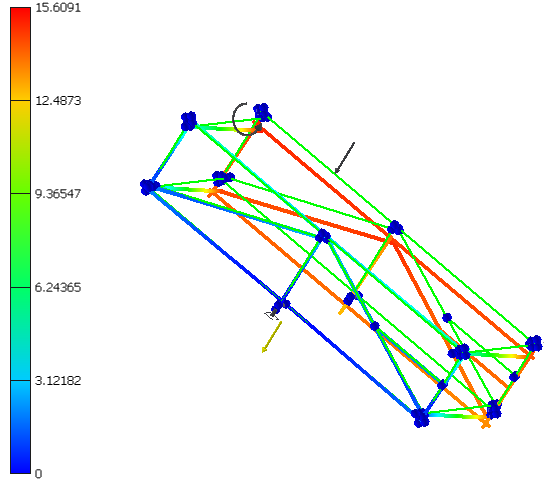
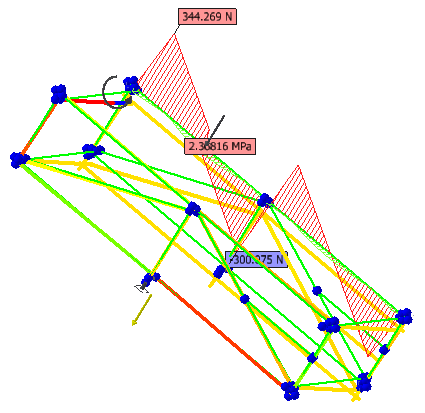
- To display important results for given beams, you can add user-defined diagrams to the graphics window. On the ribbon, click
 . You can adjust the display of beam diagrams in the Diagram Scales dialog box. In the browser, select Diagrams, right-click, and select Diagram Scales
  .
.
- You can easily animate the results. On the ribbon, click
 .
. - You can customize the Color Bar to fulfill your needs. On the ribbon, click
 .
. - Report includes all the simulation data and outputs. To create a report, click
 Report on the Publish tab.
You can also edit the simulation properties. You can change Static analysis to a Modal Analysis. Modal analysis provides modal frequency results. To change the simulation properties, select the Simulation node in the browser, right-click, and select Edit Simulation.
Individual simulations can use different positional representations of the assembly. The beam placements differ.
The Frame Analysis browser shows the mechanism’s elements. It provides access to each of them so that you can select, modify, or remove them.
In an assembly, the Frame Analysis browser displays the document name with unique simulation nodes beneath it. The component, can have multiple simulations. Each simulation node contains the subfolders for Nodes, Beams, Materials, Sections, Rigid Links, Releases, Constraints, Loads, Results, and Status.
The component node displays the assembly components based on the View Representation you specify. You can select features in the browser and apply loads and constraints to the selection. When you select a feature in the browser, the feature highlights in the model.
Each simulation can have a different set of materials, loads, constraints, and corresponding sets of results. Expand a Results node to select results you want to display. In the graphics window, you can view the outcome of the simulations and compare iterations. The browser background for inactive simulations is gray to differentiate between the active and inactive state.
Each node has a context menu with commands available for that context.
The Frame Analysis browser contains the following folders:
Name of the mechanism. | |
Simulation | Simulation name (assigned during simulation creation), a colon (:), and the occurrence number. |
Nodes | "Node", a colon (:), and the node number (assigned according to the order of node creation). |
Beams | "Beam", a colon (:), and the beam number (assigned according to the order of beam creation). |
Materials | Contains set of beams with overridden materials. |
Sections | List section types included in the structure. |
Rigid Links | "Rigid Link", a colon (:), and the rigid link number (assigned according to the order of rigid link creation). |
Releases | "Release", a colon (:), and the release number (assigned according to the order of release creation). |
Constraints | "Fixed Constraint", "Pinned Constraint", "Floating Pinned Constraint", "Custom Constraint", a colon (:), and the constraint number (assigned according to the order of constraints creation). |
Loads | Gravity, and "Force", "Continuous Load", "Moment", "Bending Moment", "Axial Moment", a colon (:), and the load number (assigned according to the order of loads creation). |
Results | Contains all results graphs, including user-created Diagrams. |
Status | Contains status messages with warnings or errors. |
| Level One | Level Two | Level Three | Level Four | Level Five |
 Assembly Assembly |  Simulation Simulation | |||
 Nodes Nodes | ||||
 Node Node | ||||
 Beams Beams | ||||
 Beam Beam | ||||
 Materials Materials | ||||
| Material override | ||||
 Sections Sections | ||||
 Section override Section override | ||||
 Rigid Links Rigid Links | ||||
 Rigid Link Rigid Link | ||||
 Releases Releases | ||||
| Release | ||||
 Constraints Constraints | ||||
 Fixed Fixed | ||||
 Pinned Pinned | ||||
 Floating Floating | ||||
 Custom Custom | ||||
 Loads Loads | ||||
 Force Force | ||||
 Continuous Load Continuous Load | ||||
 Moment Moment | ||||
 Axial Moment Axial Moment | ||||
 Bending Moment Bending Moment | ||||
 Gravity Gravity | ||||
 Results (Static Simulation) Results (Static Simulation) | ||||
| Displacement | ||||
 Loads Loads | ||||
| Fx | ||||
| Fy | ||||
| fz | ||||
| Moments | ||||
| Mx | ||||
| My | ||||
| Mz | ||||
| Normal Stresses | ||||
| Smax | ||||
| Smin | ||||
| Smax(Mx) | ||||
| Smax(My) | ||||
| Smin(mx) | ||||
| Smin(My) | ||||
| Saxial | ||||
| Shear Stresses | ||||
| Tx | ||||
| Ty | ||||
| Torsional Stresses | ||||
| T | ||||
| Diagrams | ||||
| Results (Modal Simulation) | ||||
| Modal Frequency | ||||
| F1 0.54 Hz | ||||
| F2 0.95 Hz | ||||
| F3 2.27 Hz | ||||
| F4 4.15 Hz | ||||
| F5 6.70 Hz | ||||
| F6 7.27 Hz | ||||
| F7 10.5 Hz | ||||
| F8 26.73 Hz | ||||
| ... | ||||
| Status | ||||
| Solver | ||||
Browser node context menu commands
Besides the normal context menu entries, such as visibility, the following context menu commands are unique to the Frame Analysis environment:
| Browser node | Command | Description |
|---|---|---|
| Assembly | Create Simulation | Displays the Create New Simulation dialog box where you can modify the selected properties of the new simulation. |
| Frame Analysis Settings | Displays the Frame Analysis Settings dialog box where you can modify the selected properties of the new simulation. | |
| Simulation | Activate | Makes the selected simulation the active simulation. Deactivates the current simulation if there is one. |
| Edit | Displays the Edit Simulation Properties dialog box where you can modify the selected properties of the simulation. | |
| Simulate | Runs the simulation to obtain results for actual inputs. | |
| Copy Simulation | Copies the selected simulation and pastes it into the current document browser, making it the active simulation. | |
| Delete | Deletes the selected simulation. | |
| Nodes | Custom Node | Enables you to add a node to a beam you select. |
| Beams | Beam Materials | Displays the Beam Material dialog box where you make alternate material assignments for analysis purposes. |
| Beam Properties | Displays the Beam Properties dialog box where you make alternate material assignments for analysis purposes. | |
| Materials | Beam Materials | Displays the Beam Material dialog box where you make alternate material assignments for analysis purposes. |
| Sections | Beam Properties | Displays the Beam Properties dialog box where you make alternate material assignments for analysis purposes. |
| Rigid Links | Rigid Link | Displays the Rigid Link dialog box to define a rigid link. |
| Releases | Release | Displays the Release dialog box to define a release. |
| Constraints | Edit | Displays the Edit (Type) Constraint dialog box according to the selected type. Constraints can be modified at any time in the process. |
| Reactions | Displays the Reactions dialog box reporting reaction forces and reaction moments. | |
| Delete | Deletes the selected constraint. | |
| Suppress | Removes the selected constraint from the components being analyzed. | |
| Loads | Edit (load type) | Displays the Edit (load Type) dialog box according to the selected type. You can define or modify load parameters. |
| Suppress | Removes the selected load from the components being analyzed. | |
| Delete | Deletes the selected load. | |
| Results | Activate | Makes the selected simulation result the current and displays it in the graphics region. The command is disabled when not applicable. |
| Simulate | Runs the simulation to obtain results for actual inputs. |
Browser node decorations

You can view the nodes and beams included in the structure under the Beams and Nodes folders.
- By default, the nodes and beams are named as Node:1, Node:2, and so on. You can rename them if appropriate.
- Click the node to select, and then click again to rename the node.
- You cannot edit, delete, or exclude from simulation nodes that were converted from original assembly. Custom nodes can be deleted, edited, or excluded from simulation.
- Beams that were converted from original assembly can be excluded from simulation.
You can view the applied loads and constraints under the Loads and Constraints folders.
- By default, the loads and constraints are named as Force:1, Force:2, and so on. You can rename the forces if appropriate.
- Click the node to select, and then click again to rename the node.
- Right-click the node, and then click Edit to open the selected load or constraint.
- Right-click any constraint node to view Reaction Forces and Reaction Moment.
You can view the list of releases and rigid links under the Releases and Rigid Links folders.
- By default, the Releases and Rigid Links are named as Release:1, Release:2, and so on. You can rename the forces if appropriate.
- Click the node to select, and then click again to rename the node.
- Right-click the node, and then click Edit to open the selected release or rigid link.
- You can also delete or exclude releases and rigid links from simulation.
This folder displays the various analyses the structure has undergone considering the defined conditions.
Click the desired result to be displayed in the graphics window.
When you perform modal analyses, the Modal Frequency folder is created.
Right-click the Diagrams folder to display diagrams for selected beams or adjust diagram scales.
This folder displays the various analyses the structure has undergone considering the defined conditions.
When you create a simulation and assembly frame model is automatically converted to beams and nodes, the messages about insufficient beam materials and cross-sections display.
When you run a simulation, all messages about simulation display.
Right-click and select How To… to open a Help page with a list of warnings and errors that can occur when you run simulations and how to resolve them.
The Frame Analysis tab is made up of a series of panels, each containing one or more commands that are grouped for ease of access. Each panel has a name.
The Frame Analysis tab comprises of the following panels:


Frame Analysis Settings - General tab
Frame analysis settings are applicable to all frame simulations. Whenever a new frame simulation is started, these preferences are used. You can override the global settings on a simulation basis by changing the simulation properties.
This section discusses the controls on the General tab.
| Heads Up Display (HUD) | ||
| Use HUD in Application | Select to use Heads Up Display in Frame Analysis environment. Heads Up Display is set as the default method during edit. | |
| Colors | ||
| Click the arrows at the end of the edit field to open the Color dialog box. You can specify the display colors for loads, constraints, gravity, nodes, custom nodes, beams, and rigid links. | ||
| Scales | ||
| Specifies the size of nodes, loads, and constraints as a percentage of the model bounding box. | ||
| Initial Label Placement Distance | ||
| Specifies the initial displacement distance of the labels relative to where you click in the model. The setting is a percentage of the diagonal of the model bounding box. Changes to the setting do not affect the positions of existing labels. | ||
Frame Analysis Settings - Beam Model tab
Frame analysis settings are applicable to all frame simulations. Whenever a new frame simulation is started, these preferences are used. You can override the global settings on a simulation basis by changing the simulation properties.
This section discusses the controls on the Beam Model tab.
| Beam model | ||
| Create Rigid Links | Enables to create rigid links manually. Clear the box not to automatically create rigid links during model conversion. You can create them manually based on your needs and preferences. | |
| Tolerance | Specify the maximum distance between beams to consider in automatic conversion. When the distance between two beams is smaller than sizes of sections multiplied by tolerance, then rigid link connection is created between nearest nodes. The range of valid inputs is from -100% to 500%. If you set the value to 0, the beams must be positioned right next to each other. Due to an inaccuracy, it is possible that even beams next to each other are not connected. Therefore the default value is set to 2. Positive values create rigid links between beams that have gaps between them, gap weld for example. Negative values define that there must be an intersection between beams to create rigid links. To learn more about rules applied during automatic conversion of frame assembly, see the Automatic Model Conversion Help topic. | |
| Trim Mitered Beam Ends | When selected, the overlaps are trimmed during automatic model conversion. | |
| Original models | ||
| Display as: | Specifies the default visibility settings for all components (beams and other parts) after the conversion.
| |
Frame Analysis Settings - Solver tab
Frame Analysis solver settings are applicable to all simulations. Whenever a new simulation is started these preferences are used. You can override the global settings on a per simulation basis by changing the simulation properties.
This section discusses the controls on the Solver tab.
DSC Algorithm enables you to calculate a structure with releases.
For any beam, for which you defined any type of analysis, with the following releases:
- Regular
- Unilateral
- Elastic
- Elastic and unilateral
The following operations are performed:
- A new node is generated in the structure when the structure model is generated.
- The input element with the release is modified. The new node replaces the old one in the element (the old node remains in the other structure elements).
- Between the old and the new node, Robot creates the DSC element (Discontinuity). See the following image:
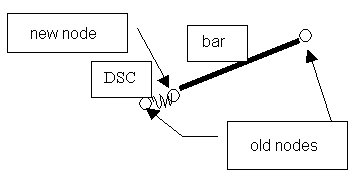
The DSC element is a 2-node element, where the nodal forces are generated according to the following formula:
Using the DSC elements lets you define elastic releases in a beam.
Frame Analysis Settings - Diagrams tab
Sets options for displayed beam diagrams.