Foundation Footings Schedule Example
In this example, a footing schedule is created. The following illustration is used for the example.
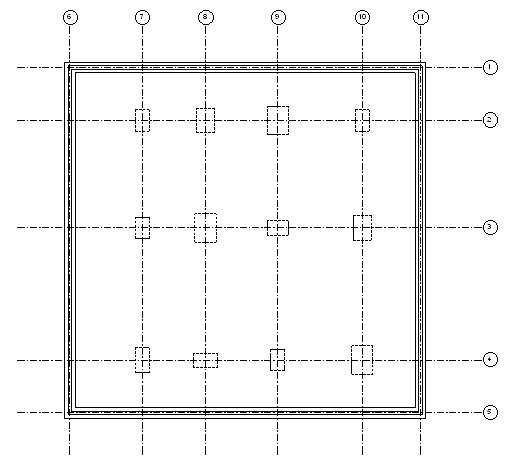
Sample structural foundation plan used for creating schedule
- Click View tab
 Create panelSchedules drop-down
 Schedule/Quantities.
 - In the New Schedule dialog, select Structural Foundation for Category.
- For Name, enter Foundation Schedule.
- Click OK.
- In the Schedule Properties dialog, add the following available fields (in this order) to the Scheduled Fields list: Type, Length, Width, Volume, Count, and Comments.
- Click the Sorting/Grouping tab.
- Set the first Sort By list to Type.
- Clear the Itemize every instance option.
- Click OK.
- You may add this schedule to a sheet. See Adding a Schedule to a Sheet.