Shape Editing for Floors and Roofs
 Revit Architecture
 Revit Structure
You can use shape editing tools to manipulate the surface of a flat (non-sloped) floor or roof by defining high and low points for drainage. By specifying the elevation of these points, you split the surface into sub-regions that can slope independently.

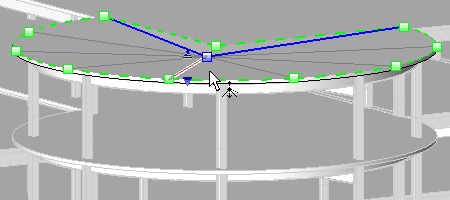
Shape edit examples
Use shape editing tools to slope a constant thickness floor or the top surface of a floor with a variable thickness layer, to model the following:
- A constant thickness floor or roof supported by sloped non-planar framing.
- A variable thickness material used to slope the surface of a horizontal plane (for example, tapered insulation).
In order to enable shape editing tools, the following conditions must be met:
- Floors must be flat and on a horizontal plane.
- A roof cannot attach to another roof, and the roof cannot be a curtain roof. If either of these conditions is not met, you cannot use the slab shape edit buttons.
You can use the following shape edit tools on the Modify Floors tab Shape Editing panel:
- Sub Elements
- Add Point
- Add Split Line
- Pick Supports
- Reset Shape
Important Considerations
Automatic Split Lines. In order to maintain the accuracy of the floor/roof geometry, split lines are sometimes created automatically. Automatically created split lines will be deleted when the condition that caused them to be created is no longer valid. For example, when 4 non-planar vertices become planar, or when you manually create a split line.
Warped Floors/Roofs. A surface will warp when bounded by 4 non-planar boundary edges or user-created split lines. To avoid warping, add a split line between opposite vertices.