Using Macro Manager and the Revit VSTA IDE
Macro Manager is the user interface for:
- Selecting an option that launches the Revit VSTA IDE, where you can add, edit, build and debug your macros.
- Running a previously built macro from a categorized list.
Shown below is the Macro Manager screen:
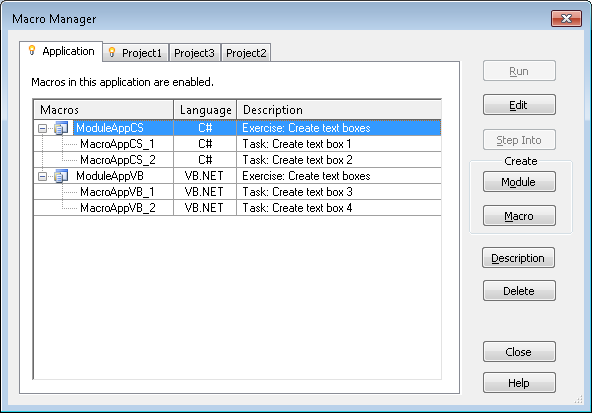
The tabs indicate the scope or level of a macro.
- Application tab. The Application tab lists macro modules available to all opened Revit projects in the current instance of the Revit application. It is always the first tab to the left and active (indicated by the
 icon). It is always available, whether projects are open.
 - Active document tab. The active document tab represents the currently active project in Revit. The project does not necessarily contain embedded macros as in this case, although it can. The tab bears the name of the active project (Project1 in this case) and is indicated by the icon. This tab is not visible when a project is not open.
- Inactive document tabs. Inactive document tabs represent open projects that contain embedded macros (see below). The tab bears the name of the project (Project2 and Project3 in this case).
You add, modify, build, and delete modules and macros from these tabs.
Macros and Modules
A module is an organizational grouping of macros. Macros can be either independent within a module when they run, or share code or utilities with each other. They are arranged in the Macro Manager as follows with the macros organized under their parent module.
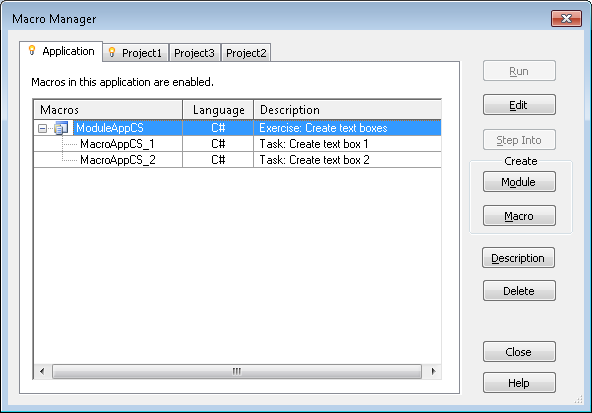
Macros within a module are seen and built together. The icons representing the module also show their current state.
| Icon | Macro State |
|---|---|
 | The module is successfully built, enabled, and loaded. This module is ready to be run. See Running Macros in the Macro Manager. |
 | The module has been edited, but not built. See Building Macros in the Revit VSTA IDE. |
 | The module is disabled. See Macro Security. |
 | The module failed to build. See Building Macros in the Revit VSTA IDE. |
 | The module failed to load. |
 | The module is corrupt. |
Application-level and Document-level Modules
Fundamentally, application-level macro tools are written to be useful in any document in nearly any Revit session. Additionally, they do not require a project to be open in Revit to run. This allows you the flexibility to:
- Customize the Revit UI
- Add tools to Revit
- Modify documents on opening
- Batch open documents
- Apply new standards or settings to new documents
Should these uses be implemented, it is good practice to create application-level macros that initiate transactions needed by the macro.
Document-level macros tools are written for specific projects and are saved in the Revit project.
Macro Project File Locations
When you work in the Revit VSTA IDE, you must save and build the macros successfully before they will display in the Macro Manager's categorized list. Before we look at an example of the initial code loaded into the Revit VSTA IDE, let's discuss where macro project files reside on your computer.
Both Application-level and Document-level macro projects are stored in a subfolder of the Revit installation directory:
Windows XP: C:\Documents and Settings\All Users\Application Data\Autodesk\Revit\Macros\2012...
Windows7/Vista: C:\ProgramData\Autodesk\Revit\Macros\2012...
Document-level macro projects are stored within an RVT file. On disk, when the associated RVT project opens, any built and saved macro(s) are stored temporarily. The Document-level macro files are deleted from your local computer when their corresponding Revit project document (.rvt) closes.
Now that we have introduced the overall tools and processes, let’s look at the specific tasks.