This was a project for
Water Treatment
Products in the UK.
The main purpose of this app is to estimate the amounts of
relevant WTP products needed for different situations, initially
for Steam Boiler systems and Water Cooling systems. Essentially,
you enter the data that describes the characteristics of your
system and the app calculates the products that you need. I also
added in some convenience functions for calling the office number,
sending email to sales reps, bringing up a map of the office etc.
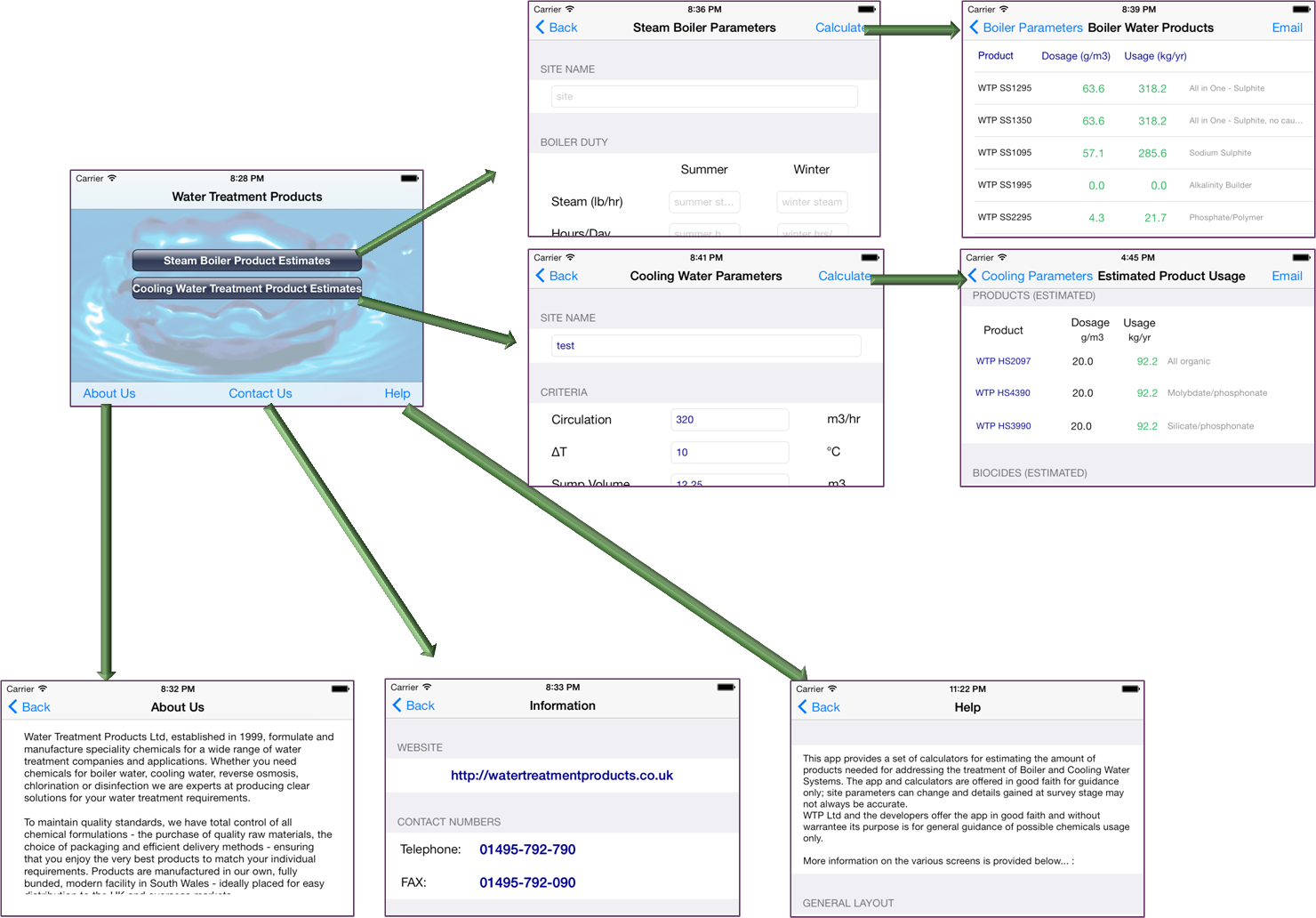
A rough outline of the general flow is shown below. This is
the iPhone version, but the Android version is pretty much the
same.
In general, I found it fairly easy to do most of the work, but
I have to say I was really surprised that the default behaviour
of the software was not what I expected, and I had to work
around a lot of niggly issues, mostly having to do with
navigation between fields and between screens. I listed some of
the issues and resolutions here, because it took me a while to
solve them, and there was a lot of misleading information on the
Web.
Dismissing the Numeric Keyboard
This one is really annoying. For numeric fields, we typically
want the "Digital" keyboard rather than the alphanumeric
keyboard. However, there is no way to dismiss the keyboard when
you are done entering the data (!). Why, oh why, is this the
default behaviour?! There are 3 options:
- Specify the "Next" field (see
later issues)
- Add a touch handler for the
background and dismiss the keyboard
- Add a navigation view to jump
between fields or dismiss the keyboard
Adding a Background Touch Handler
In theory, you can create a handler routine for the background
(outermost controller) view and associate an action with in
InterfaceBuilder, but that didn't seem to work in all cases. The
best solution I found was to add a tap gesture recognizer handler
to the background view, in the viewDidLoad method:
- (void)viewDidLoad
{
    [super viewDidLoad];

    // register a gesture recogniser to detect if user touches the background
    UITapGestureRecognizer *gestureRecognizer = [[UITapGestureRecognizer alloc]

    initWithTarget:self action:@selector(hideKeyboard)];
    gestureRecognizer.cancelsTouchesInView = NO;
    [self.tableView addGestureRecognizer:gestureRecognizer];


    // ... other code
}


- (void) hideKeyboard {
    [self.view endEditing:YES];
}
Scrolling to a Specific Field
Having added a way to navigate between fields, the next problem
was that iOS caches list entries, and it turns out to be
difficult to set the focus to a field that hasn't already been
cached. This means that after you go through the first 2 screens
or so, setting a field to be in focus doesn't work because that
field is not active yet. The way I got around this was to use
the fact that the fields were contained within a table, and you
can figure out the containing row and scroll the display to that
row.
// method to find the index of a row within a table
- (NSIndexPath *) findTableIndex:(UITextField *)textFld {
    // Get the cell in which the textfield is embedded
    id textFieldSuper = textFld;
    UITableViewCell *cell;
    while (![textFieldSuper isKindOfClass:[UITableViewCell class]]) {
        textFieldSuper = [textFieldSuper superview];
    }

    // Get that cell's index path
    NSIndexPath *indexPath;
    cell = (UITableViewCell *)textFieldSuper;

    indexPath = [self.tableView indexPathForRowAtPoint:cell.center];
    return indexPath;
}


// method to scroll the table to the row that contains the supplied text field
- (void) scrollToField:(UITextField *)textFld {

    // Get the cell's index path
    NSIndexPath *indexPath = [self findTableIndex:textFld];

    if (indexPath){
        // scroll the table to that index
        [self.tableView scrollToRowAtIndexPath:indexPath
                                 atScrollPosition:UITableViewScrollPositionTop
                                 animated:YES];
    } else {
        NSLog(@"no index returned, not scrolling");
    }

}
Setting Order of Field Navigation
OK, so my app has a lot of input fields, some of them on the
same line. By default, iOS does not seem to automatically move
from one field to the next. You can configure it to add a "Next"
button, but the interpretation of "Next" is strange - for
example, it will jump a user to the next field down, not across
if there are 2 fields on the same line.
So, what I did was add my own navigation scheme where I
created a doubly linked list (well, I actually used a Dictionary
data type) that defined the desired order of the fields. Then,
when the user touches "Previous" or "Next" I set the focus to
the appropriate field by going forward or backward in the list -
you can also wrap around between the top and bottom this way.
The FieldNavigationLink class that holds the linked list of
navigation order between fields:
//  FieldNavigationLink.h
//  Created by Phil Price on 9/23/13.
//  Copyright (c) 2013 Nateemma. All rights reserved.

#import

@interface FieldNavigationLink : NSObject

@property (nonatomic, weak) UITextField *currField;
@property (nonatomic, weak) UITextField *nextField;
@property (nonatomic, weak) UITextField *prevField;

- (id) init;
- (id) initWithFields:(UITextField *)currFld next:(UITextField *)nextFld prev:(UITextField *)prevFld ;


@end

//  FieldNavigationLink.m
#import "FieldNavigationLink.h"
@implementation FieldNavigationLink

UITextField *currField;
UITextField *nextField;
UITextField *prevField;

- (id)init{
    self = [super init];
    if (self) {
        // Initialization code here.
    }
    return self;
}

- (id) initWithFields:(UITextField *)currFld next:(UITextField *)nextFld prev:(UITextField *)prevFld {
    self = [super init];
    if (self){
        self.currField = currFld;
        self.nextField = nextFld;
        self.prevField = prevFld;
    } else {
        NSLog(@"FieldNavigationLink.initWithFields() - Oops! Error creating self");
    }
    return self;
}
@end
...and within the ViewController code:
Object-global variables:
// dictionary to hold fields navigation data, key is field name
NSMutableDictionary *mFieldDict ;

// curent navigation field
FieldNavigationLink *mCurrNavLink;
Initialisation code within the view controller code:
- (void)viewDidLoad
{
    [super viewDidLoad];

    // setup the navigation 'chain'
    [self setupNavigation];

    // other init code...
}
Other code within the controller:
- (void) addToDictionary:(UITextField *)currFld next:(UITextField *)nextFld prev:(UITextField *)prevFld {

    FieldNavigationLink *flink;

    @try{
        flink = [[FieldNavigationLink alloc] initWithFields:currFld next:nextFld prev:prevFld];
        [mFieldDict setObject:flink forKey:currFld.placeholder];
    }
    @catch (NSException *e){
        NSLog(@"addToDictionary Exception: %@", e.reason);
    }
}

- (void) setupNavigation {
    mFieldDict = [[NSMutableDictionary alloc]  init];

    // add fields to define the navigation order
    [self addToDictionary:self.inSite          next:self.inSumSteam      prev:self.inMinCausticAlk];
    [self addToDictionary:self.inSumSteam      next:self.inWinSteam      prev:self.inSite];
    ... (add other fields)
    [self addToDictionary:self.inMinCausticAlk next:self.inSite          prev:self.inMinSulphite];

}

// define the 'current' field
- (void) setCurrLink:(UITextField *)textField {
    @try{
        mCurrNavLink = [mFieldDict objectForKey:textField.placeholder];
        if (!mCurrNavLink){
            NSLog(@"setCurrLink: current link is NULL");
        }
    }
    @catch (NSException *e ) {
        NSLog(@"setCurrLink Exception: %@", e.reason);
    }
}
An example of this list is used can be seen in the
previous/done/next code (below)...
Adding a Previous/Done/Next Navigation Bar
It seems to me that this should be the default behaviour. What
I did was add a view above the keyboard which displayed 3
buttons: "Previous", "Done" and "Next". Previous moved focus to
the previous input field, Next moves focus to the next input
field and Done dismisses the keyboard. It actually wasn't too
hard to do this in the end, but there was a lot of incorrect
information out there on the Web.
OK, to do this, you implement an "InputAccessoryView" that is
displayed with the keyboard
// create input accessory for augmenting keyboard navigation with prev/done/next buttons

-(void)createInputAccessoryView
{
    // create the toolbar
    self.keyboardToolbar = [[UIToolbar alloc] initWithFrame:CGRectMake(0, 0,
                                                                        self.view.bounds.size.width, 44)];
    self.keyboardToolbar.barStyle = UIBarStyleDefault ;
    // probably want to change the default colour here to match your app

    // create the buttons
    UIBarButtonItem *previousButton = [[UIBarButtonItem alloc] initWithTitle:@"Previous"
                                                                       style:UIBarButtonItemStyleBordered
                                                                      target:self
                                                                      action:@selector(gotoPrevTextfield)];

    UIBarButtonItem *nextButton     = [[UIBarButtonItem alloc] initWithTitle:@"Next"
                                                                       style:UIBarButtonItemStyleBordered
                                                                      target:self
                                                                      action:@selector(gotoNextTextfield)];

    UIBarButtonItem *doneButton     = [[UIBarButtonItem alloc] initWithTitle:@"Done"
                                                                       style:UIBarButtonItemStyleBordered
                                                                      target:self
                                                                      action:@selector(doneTyping)];

    UIBarButtonItem *flexibleSpace  = [[UIBarButtonItem alloc]
                                                    initWithBarButtonSystemItem:UIBarButtonSystemItemFlexibleSpace
                                                                                    target:nil
                                                                                    action:nil];

    // format buttons (e.g. colour) here

    // add the buttons to the toolbar (the flexible space items move the other buttons to the left, centre and right
    [self.keyboardToolbar setItems:[NSArray arrayWithObjects: previousButton, flexibleSpace,
                                                      doneButton, flexibleSpace, nextButton, nil] animated:NO];


}
and the handlers for the button presses:
// Done handler
-(void)doneTyping
{
    if (mCurrNavLink){
        [mCurrNavLink.currField resignFirstResponder];
    } else {
        NSLog(@"doneTyping: current link is NULL");
    }
}

// Previous Handler
-(void)gotoPrevTextfield
{
    if (mCurrNavLink){
        [mCurrNavLink.currField resignFirstResponder];
        [self scrollToField:mCurrNavLink.prevField];
        [mCurrNavLink.prevField becomeFirstResponder]; // do this last, changes mCurrNavLink
    } else {
        NSLog(@"gotoPrevTextfield: current link is NULL");
    }
}

// Next handler
-(void)gotoNextTextfield
{
    @try{
        if (mCurrNavLink){
             [mCurrNavLink.currField resignFirstResponder];
            [self scrollToField:mCurrNavLink.nextField];
            [mCurrNavLink.nextField becomeFirstResponder];  // do this last, changes mCurrNavLink
        } else {
            NSLog(@"gotoNextTextfield: current link is NULL");
        }
    }
    @catch (NSException *e){
        NSLog(@"gotoNextTextfield Exception: %@", e.reason);
    }

}
We also need to make sure we handle the case where the user
selects a random input field, i.e. don't assume the user only
uses the buttons top navigate
- (void)textFieldDidBeginEditing:(UITextField *)textField {
    // add input accessory view to the selected textfield.
    [textField setInputAccessoryView:self.keyboardToolbar];

    // save the navigation link for this field
    [self setCurrLink:textField];

    // set input focus to this field
    [textField becomeFirstResponder];
}
Checking Input Values Before Moving to Next Screen
The XCode tool makes it quite easy to add navigation between
screens based on user touches. However, this doesn't really
allow you to run any checks on the data entered before making
the transition. So, what I had to do was call an action routine
when the user selects something that should trigger a
transition, check that the values are OK and then initiate the
new screen in software. Not so hard once you know what to do,
the main issue is just that you have to code the name of the
transition into the app.
In my case, I have a button on the top bar to initiate
processing and jump to the next screen. In Interface Builder, I
connect this to the Action calculateProducts (use any name you
like), which checks the input data and then initiates the
transfer to a new controller.
The only trick here is that you have to define (in Interface
Builder) a manual segue between the outermost view controller in
the current display and the outermost view controller in the
next display.
// check the input values for correctness
- (BOOL)checkInputFields{
    BOOL result = YES;


    // ... check values here, return NO if any errors
    // (I also set the focus to the offending field)

    return result;
}


// Button action to show products
- (IBAction)calculateProducts:(id)sender {
    if ([self checkInputFields]){

        // finish up whatever needs to be done, save data etc.

        // initiate transition to next display (change name used in Interface Builder, not "BoilerProducts")
        [self performSegueWithIdentifier:@"BoilerProducts" sender:self];
    } else {
        NSLog(@"Error in input fields");
        UIAlertView *alert = [[UIAlertView alloc] initWithTitle:@"Missing Data"
                                                                             message:@"Please enter data in all cells"
                                                                             delegate:self cancelButtonTitle:@"OK"
                                                                             otherButtonTitles: nil]
        [alert show];
    }

}